
Estimation Perspectives
Updated
A perspective is one way of estimating work. Each perspective has its own voting behavior, card sequences, and the Jira field where the final estimate is stored.
Working week
At the top of the Settings tab, choose the Week starts on day and the Weekend days your team does not work. The default is Monday, with Saturday and Sunday as weekend days. Pick one or two weekend days, and do not include the week start day in the weekend. If the selection is invalid, the Weekend days field turns red and explains what to change.
Capacity planning uses these days to count the working days in each sprint and to calculate the target capacity. The team calendar starts on the chosen day and disables the weekend days, so you cannot mark time off on them.
Below the two day fields, Work hours sets how many hours one full working day counts for. It accepts a whole number from 1 to 13, and the default is 8. Capacity planning uses it as the regular day for every working day in a sprint.
Next to Work hours, Maximum daily hours sets the largest number of hours a team member can record for one day. It accepts a whole number from 1 to 13, and the default is 13. It cannot be lower than Work hours. Capacity planning uses this value as the maximum of every time off hours field. A day above the work hours raises that team member's available hours and the team capacity.
Why Multiple Perspectives?
Different estimation dimensions help your team look at work from several angles:
- Points: Relative complexity and effort
- Time: Hours or days of work
- T-Shirt Sizes: Coarse-grained sizing (XS, S, M, L, XL)
- Risk: Likelihood or impact of unknowns
Perspective Settings
Each perspective is configured through five sub-tabs: General, Voting, Cards, Estimation, and Backup & Restore.
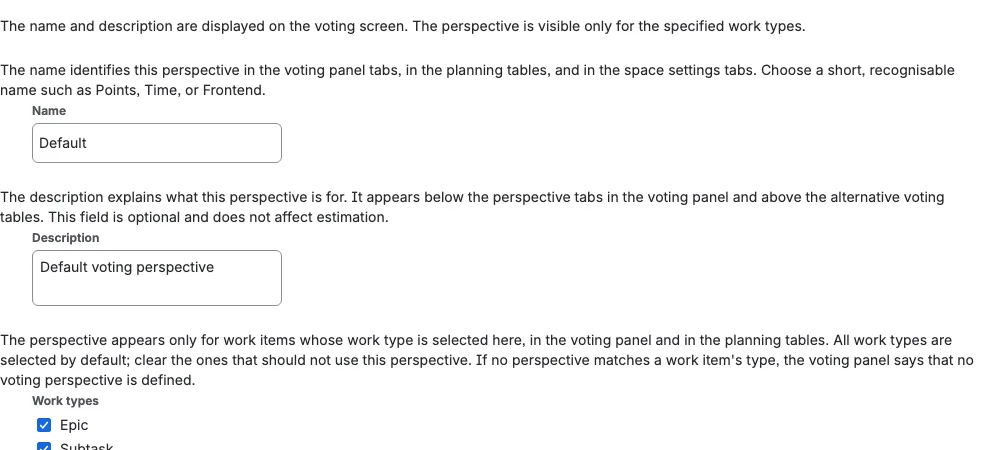
General
The General tab holds the perspective's name, optional description, and Work types. The name cannot be empty and must be unique in the space. Names are compared without regard to uppercase or lowercase, so Points and points count as the same name. If another perspective already uses the name, the field shows an error and the name is not saved until you change it. The name and description are displayed on the voting screen. You can limit a perspective to specific Work types (for example, show the Time perspective only for Bug and Task work items). When you create a perspective, all Work types of the space are selected by default; clear the ones that do not apply. If you select no Work types, the perspective appears for all work items.
If no perspective applies to a work item's work type, the Scrumpy panel shows No voting perspective, names the work type, and asks you to configure the space's perspective settings rather than showing an empty deck.
Below those fields, the General tab has three actions:
- Reset to defaults: Return the perspective to its initial settings, after a confirmation
- Cancel all sessions: Immediately cancel all active voting sessions for the perspective, after a confirmation. This cannot be undone, and all participants lose their current votes
- Delete perspective: Remove the perspective and all its sessions permanently, after a confirmation. The Default perspective cannot be deleted
Voting
| Setting | Description |
|---|---|
| Open voting | When on, participants see each other's votes in real time |
| Certainty | Shows how often participants re-voted during the session, not how spread the votes are. One vote per participant gives 100% |
| Variation | Shows how widely the vote values are spread around their average. Lower is better, and it needs at least two numeric votes |
| Automatic completion | Off by default. Completes the session automatically when all required voters have voted. Paused sessions are not completed automatically, and at least one required voter must be set |
| Asynchronous voting | Participants vote at their own pace, without a countdown timer |
| Vote duration | Time limit in seconds for each voting round (10 to 180 seconds, default 60 seconds). A round that ends with no real estimate is cancelled instead of completed |
| Averaging | How votes are combined: Arithmetic mean, Geometric mean, Harmonic mean, Quadratic mean, Midrange, Median, Minimum, Maximum, Mode (most common), PERT, or Count |
The moderator can also try another method on a single completed result before accepting it, to compare outcomes, without changing the perspective's saved setting. See Voting Session Controls.
Mean averaging
Scrumpy offers five mean-based methods:
- Arithmetic mean adds the votes and divides by the number of votes.
- Geometric mean multiplies the votes and takes the nth root.
- Harmonic mean divides the number of votes by the sum of their reciprocals.
- Quadratic mean squares the votes, averages the squares, and takes the square root.
- Midrange is halfway between the smallest and largest vote.
A zero vote makes the geometric and harmonic means zero. Every result is rounded to the nearest available card, like the other averaging methods.
PERT averaging
PERT (Program Evaluation and Review Technique) is a three-point estimation method. When you choose PERT as the averaging method and the team has cast at least three different values, Scrumpy takes the three points from the votes themselves:
| Point | Meaning |
|---|---|
| Optimistic (O) | The smallest value voted |
| Most Likely (M) | The average of every value strictly between the smallest and the largest |
| Pessimistic (P) | The largest value voted |
The estimate is the weighted PERT average:
E = (O + 4M + P) / 6
The result is rounded to the nearest available card, exactly like the other averaging methods. Scrumpy also shows how spread out the three points are, as the Deviation:
deviation = (P - O) / 6
While Open voting is on, the Optimistic (smallest) and Pessimistic (largest) votes are highlighted in the vote list, so the two extremes stand out. If the team voted fewer than three different values, PERT falls back to the arithmetic mean. The Deviation indicator follows the same rule as Certainty and Variation: it appears once the session is completed, or live while Open voting is on.
Count averaging
Count ignores the vote values: the estimate is the number of votes cast. The extra emoji cards carry no value and are not counted. The count is rounded to the nearest available card, exactly like the other averaging methods, so four votes on a deck without a 4 (for example Fibonacci) round up to 5.
Cards
| Setting | Description |
|---|---|
| Sequence | Choose the estimation style from the dropdown: Regular, Fibonacci, Tens, Fingers, Dice, T-Shirt, Free Scale, or Parametric |
| Available cards | Which cards from the sequence appear to voters during a session |
| Card titles | The name shown for each card, built in per card and editable |
| T-shirt story points | The score each T-shirt card counts for. You can edit the number next to any T-shirt card. The numbers must keep growing from top to bottom |
| Extra cards | Fun cards for team morale (infinity, phoenix, cookie, buffalo, ping pong) |
| Custom images | Upload your own artwork for any individual card by clicking its preview in the Available cards or Available extra cards list. Images must be a PNG or JPEG file, up to 293 kB, with a width to height ratio of 1:1.5 (for example 400 by 600 pixels). Use the same dialog to remove a custom image and restore the built-in artwork |
| Free scale range | Custom minimum and maximum for free-form numeric estimation, with a preview slider that shows the value in a large, easy-to-read size, as story points with a small sp suffix. The converted duration appears only when the estimation target writes a time value (a time board or a Time field). |
| Story points to hours | How many hours one story point represents. You can enter a decimal value such as 1.5. A value that is not a number is rejected with an error and is not saved. It is available for every sequence, including T-shirt: a T-shirt size is first converted to the story points configured next to the cards, and then to hours. The voting panel follows the estimation target. A numeric board or a story points field shows story points only. A time board or a Time field shows the duration only. When a Field target has both a story points field and a Time field, both appear, for example 5 sp · 1 day 3 hours. A T-shirt result shows only the configured parts in one badge, in the order story points, time, T-shirt size, for example 1 sp · S. The same units appear in the vote list, the result chart, the badge beside the narrowed Override dropdown, and the final result. When the estimation target is Field, a non-zero conversion also shows the Time field for every sequence, including T-shirt. When Story points to hours is set but the target does not write a time value, the duration is not displayed anywhere and an information message in the perspective settings explains why. |
Custom images are set per card and per sequence. The Available cards list shows the cards of the sequence selected in Sequence (Regular, Fibonacci, Tens, Fingers, Dice, or T-Shirt), and the Available extra cards list shows the fun cards, so you can give any individual card its own artwork without affecting the same card value in another sequence (for example, overriding "1" in Fibonacci leaves "1" in Tens untouched). Custom images are kept with the perspective and appear both in the settings previews and in the voting panel where voters pick their estimate. Parametric perspectives have no cards, so they have no card images.
Only people who can manage the space can upload or remove a custom image. The image belongs to this space and cannot be used by another space.
Below the Available cards and extra cards sections, a note shows an example image and repeats the supported file types and limits. The example phrase is a link that opens the image in a new tab.
In the voting panel, the cards resize to fit a fixed four-row area. A short deck shows larger cards, and a full deck uses the standard card size, so the panel keeps the same height when you enable or disable cards. The extra cards shown below the free-scale slider stay compact.
Parametric
Choose Parametric when the estimate should come from a formula instead of a card. The card and card image controls are replaced by parameter controls and a formula.
- The first two parameters are always present. They start with the names "Parameter 1" and "Parameter 2" in your language. You can rename them, set their minimum and maximum, and set their step size. Clearing a name restores the default name.
- Press Add parameter to add a third parameter, up to ten parameters. Parameters from the third onward have a checkbox. Select one or more and press Delete selected to remove them.
- The formula uses the parameter variables shown below the field:
p1,p2, and so on. For example,(p1 + p2) / 2averages the first two parameters. - The preview below the formula uses the same parameters voters see. Move a parameter to see the result update. When Story points to hours is set, the preview appends the converted duration, for example 5 sp · 1 day 3 hours.
- The formula supports
+,-,*,/,^,%,min,max,round,floor,ceil,abs,sqrt,sin,cos,tan,log,exp, and the constantspiande. - A parameter name cannot be blank: clearing the field restores the default name. The minimum must be below the maximum, and the step must be greater than zero, no larger than the range, and have at most two decimal places. Parameter minimums and maximums may be negative, and parameter values may be negative. Invalid rows and invalid formulas show an error and are not saved.
- The formula result is always a whole number of story points. It is rounded to the nearest whole number with standard rounding (for example 5 / 3 becomes 2, and 5 / 2 becomes 3), and a result below zero becomes 0. The averaged result of a completed parametric session is rounded the same way.
- Voters move the parameters and see the formula result below them. They vote the result value, and can change their parameters or withdraw the vote.
- A vote records every parameter position together with the result. With open voting and after completion, the chart also draws the averaged positions, using the perspective's averaging method. When a parametric session completes, the voting panel keeps two tabs: Results with the chart, and the chart tab. A two-parameter perspective shows Quadrant with one dot per participant drawn from those recorded positions and a dashed crosshair for the averaged position; a perspective with three or more parameters shows Radar with one polygon per participant and a dotted averaged polygon. The final result and averaging controls stay below both tabs, and the Parameters averaging mode averages each position and then applies the formula.
- In the planning table each work item's parametric cell shows the result with an Edit vote control that opens the sliders and a cross-circle control that withdraws the vote. The result is never typed in directly.
- In bulk voting a parametric perspective also has a selectable row with Affinity, Dot, and Bucket tabs. The Bucket tab lists the voted estimates from the smallest to the largest, and each row opens the same slider popup; nothing in that table can be dragged.
- In history, dashboards, and Jira write-back, a parametric result is treated as a number. It shows as story points, or as a work duration when Story points to hours is set.
Each card also has a title field beside its preview. Every card starts with a built-in playful title, such as "Low hanging fruit" for 1 or "When pigs fly" for infinity. Edit the field to give the card your own name for this perspective; the title appears in the settings preview and in the card's tooltip in the voting panel. A custom title also replaces the estimate value that minimalistic card visuals would otherwise show in the tooltip.
Clearing the field shows an error because every custom title must contain at least one letter. Press the small reset control that appears beside an edited title to restore the built-in one.
Custom titles must also be unique within the card sequence; built-in titles are exempt because several intentionally repeat. Titles follow the card value, so sequences that contain the same value share a custom title, while custom images stay separate per sequence.
When you use the T-shirt sequence, a number appears beside each card title. This is the story point value that card counts for when Scrumpy calculates the result. Change a number to match your team's scale. Each card must be higher than the card before it, so the numbers always form a growing sequence. To make bigger jumps, start at the bottom of the list and work upward. The card still shows its size label, such as M, during voting. The size label is written to Jira only when the perspective writes a T-shirt field.
To edit T-shirt story points:
- Open the perspective settings.
- Go to Cards.
- Choose T-Shirt in Sequence.
- In Available cards, change the number next to a card title.
Estimation Target
| Setting | Description |
|---|---|
| Default | Use Jira's built-in board estimation (recommended). The first board is selected automatically, and a link opens the board's estimation settings |
| Field | Write to custom Jira fields for story points, time tracking, or T-shirt sizes |
Scrumpy always writes an accepted estimate to Jira, so there is no target that keeps the estimate only in the app. A perspective saved before this change with no target now uses Default.
The Default target needs an estimation board that has an estimation field. If no board is selected, or the board has no estimation field, an error appears below the board selector and a change to an estimation setting is not saved. Every other setting, such as open voting or the card sequence, is still saved. The option you picked stays selected while you fix the board, so your choice is not lost.
The Estimation board list groups boards under Story points, Time, and No estimation. Boards without an estimation field appear under No estimation and are disabled, so you can see them but cannot choose them. When no board is selected yet, the first board that has an estimation field is selected automatically.
The estimation board also decides where the perspective appears in Capacity planning. When the target is Default and the estimation board matches the board selected there, the perspective gets its own voting tab in the capacity plan, so you can estimate and vote without leaving the tab. A Field target, or a different board, keeps the perspective out of the capacity tabs.
When you use the Field target, the fields shown depend on the sequence and conversion:
- T-Shirt Size: A text or select field for size labels. A T-shirt perspective can also choose a story points field; the accepted estimate is then written as the story point value mapped to the chosen card (for example, S = 10) instead of the size label. If you choose more than one field, each is updated and each appears as its own badge
- Story Points: A number field for story point values, shown for the numeric sequences and optionally for T-shirt perspectives
- Time: A time tracking field for hour-based estimates, shown only when Story points to hours is set to a non-zero value
With the Default target, a T-shirt estimate is written as the story point number you set for the chosen card. For a T-shirt perspective, the T-shirt field also appears right next to the Estimation board selector so the same accepted estimate can be written as its size label to that field as well.
With the Field target, choose a story points field to write that mapped number, a T-shirt field to write the size label, the Time field, or any combination. The field controls are indented to line up with the board selector.
With the Field target, at least one visible field must be selected. A T-shirt perspective can choose the story points field, the T-shirt field, the Time field when a conversion is set, or any combination of them. If none is selected, the dropdowns are marked invalid and the change is not saved. The Field choice stays selected while you pick a field, so the setting does not jump back to Default. The Time field is hidden for every sequence when Story points to hours is 0 or empty, and its saved selection is cleared.
When every selected field is set on a T-shirt perspective, the story points field receives the mapped value, the T-shirt field receives the size label, and the Time field receives the converted duration. In the planning table, each configured field appears as its own badge in the order story points, time, T-shirt size, separated by middle dots; a field that is not configured is omitted. With the Default target, a T-shirt perspective writes the mapped story points to the board and the size label to the T-shirt field. The duration is shown only when the board is time-based; a numeric board shows the story points and the size label. A time board shows the duration and the size label. The voting panel uses the same units, so a numeric board shows story points, a time board shows the duration, and a Field target with both a story points field and a Time field shows both in the vote badges, chart labels, and final result. A duration is never shown when the target does not write a time value.
Below the estimation fields, Preview shows a sample accepted estimate using the same formatting as the voting panel. The sample follows the selected fields and the Story points to hours mapping, so it can show story points, the converted duration, and the T-shirt size together, for example 3 sp · 5 days · XL. Change a field or the conversion factor and the preview updates immediately. If no estimation field is selected, the preview is hidden.
When a field no longer applies after you change the sequence or clear the conversion factor, it is hidden and its saved field selection is reset, so a later switch does not silently restore a stale field.
Changing an estimation setting refreshes any open planning table for that perspective. The table reads the affected work items from Jira again, so a column that showed the old field or board updates to the new one without a page reload. This covers the estimation target, sequence, story points field, time field, T-shirt field, story points to hours, and estimation board.
Backup & Restore
The Backup & Restore tab holds:
- Download: Download the perspective settings as a JSON file you can share. The file includes every setting except the estimation board, so it can be loaded into another space
- Load: Import a previously downloaded settings JSON file to apply it to this perspective. The target perspective keeps its own estimation board. The same file can be loaded into another perspective, including a perspective in another Jira space or another Jira site. Emoji and other non-ASCII card values survive the round trip. Files that are not valid settings are ignored
Only space administrators can download or restore perspective settings. The download link is prepared when you open the tab and stays valid for one hour.
Changing settings during a session. Settings fall into two groups. A change in the first group ends the running voting sessions for that perspective, because the round itself would no longer make sense. A change in the second group is safe at any time, so it never ends a session.
Changing any of these ends the running sessions for the perspective:
- The card sequence
- The active cards of the sequence
- The extra cards
- The free scale minimum or maximum
- The parametric parameters and the parametric formula
- The vote duration
- Auto-complete
- Asynchronous voting
Reset to defaults also ends them, because it resets the settings above.
Changing any of these never ends a session, even while people are voting:
- The name, the description, and the Work types
- Open voting, certainty, and variation
- The averaging method
- Card titles and card images
- The T-shirt story points
- Story points to hours
- The estimation target, the estimation board, and the estimation fields
Changing the Work types can hide the perspective, and its session, from a work item whose work type you removed. The session is not cancelled, and it appears again when the work type is included.
A settings download is safe at any time and never affects a session. Loading a backup applies its settings like any other change, so it ends the running sessions only when the imported file changes one of the settings in the first group.
Managing Perspectives
In the space settings page, each perspective is a tab, and you can add more with Add new perspective. A new perspective starts with the name New view; rename it to a short, recognizable name. For each perspective you can:
- Reset to defaults (General): Return the perspective to its initial settings
- Cancel all sessions (General): Immediately cancel all active voting sessions for the perspective. This cannot be undone, and all participants lose their current votes
- Delete perspective (General): Remove the perspective and all its sessions permanently. The Default perspective cannot be deleted
- Download (Backup & Restore): Download the perspective settings as a JSON file you can share. The file includes every setting except the estimation board, so it can be loaded into another space
- Load (Backup & Restore): Load a previously downloaded settings file to apply it to this perspective. The target perspective keeps its own estimation board. The same file can be loaded into another perspective, including a perspective in another Jira space or another Jira site. Files that are not valid settings are ignored
Any change you make is shared with everyone viewing the Scrumpy panel right away, so they see the updated settings without refreshing. If a change cannot be saved, the setting returns to its previous value.
The space settings page remembers the outer tab, the perspective tab, and the perspective sub-tab you last opened for the current browser tab, so a reload returns you to the same view. The same applies to the Space Estimations page and the work item panel.