
Chat and Communication
Updated
Every voting session includes a built-in chat panel for real-time team communication. Chat messages and their reactions are kept for 72 hours after the last change. In a planning session, the planning-session chat and the chats of its work items form one shared conversation: a message sent from any chat tab of the planning session belongs to that session and appears in every chat tab of the session, even when the work item is not shown in the other tab. A message sent from the work item panel outside a planning session is not part of any planning session; it appears only in the chat tabs that show that work item. Completing a planning session also removes its planning-session messages, the work item messages of its items, and their reactions. In Capacity planning, the Chat tab in the right-hand tabs shows the same session conversation; selecting a work item only chooses where a new message is sent.
You only see chat for work items you can open in Jira. A work item hidden from you by Jira issue-level security is not returned, even if you know its key.
When a work item has no messages yet, the chat shows an empty state that invites you to start the conversation. The work item Chat tab shows every message of that work item, including messages sent from a planning session, and the planning chat of the planning session that lists it as an item. It does not show messages of other work items. Open a planning session chat tab to read the full session conversation. A message you send from the work item panel outside a planning session stays in that work item's chat and appears only in the chat tabs that show that work item. A work item outside every planning session shows only its own chat.
Chat Features
- Rich text editing: bold, italic, links, lists, and code blocks
- Private messages: moderators and voters can mark a message as private
- Thumbs up/down: react to messages with voting buttons
- Edit and delete: authors can edit or delete their own messages
- Live delivery: messages appear instantly, no page refresh needed. If the space has a password, live delivery starts after you enter it. You also need to be able to browse the space in Jira to receive live messages.
Sending a Message
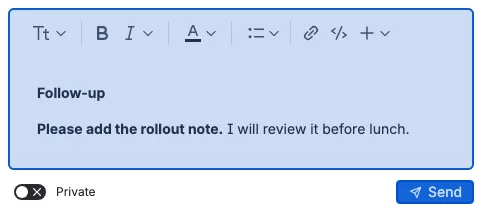
Write in the message box and press Send. Your message appears in the conversation right away and the message box clears at the same time, so you can keep typing without waiting for the server. The Send button never shows a spinner and never blocks you while the message is being saved.
In a planning session, a small note under Send reminds you that the chat history belongs to that planning session.
If the message cannot be saved, it is removed from the conversation and your text comes back in the message box so you can try again. The same happens when an edit cannot be saved: the message keeps its previous text and stays open for editing.
A message can hold up to 8,000 characters. When new text would push a combined message over that limit, the chat starts a new message instead. To keep one person from flooding the conversation, you can send one message per second, up to 20 per minute and 500 per day in the same work item. When you reach a limit, the chat tells you how many seconds to wait, your text stays in the message box, and no message is sent. A message that uses formatting the chat cannot display is not sent either, and the chat explains why. If a stored message still cannot be displayed, the conversation shows a short note in its place and the rest of the chat keeps working.
Message Details
Each message shows its author, the author's role (Moderator, Voter, or Guest), the time of its first text, and one action row. Every message is the same width, and a colored accent on its left and right side tells your messages from the other participants' messages. When you send a message right after your own previous message, the new text is added to that message after a single newline. The combined message keeps one author header, one time, and one action row. Editing it edits the combined text. A message from another participant, a private or public change, or a role change starts a new message. Your own messages sit on the right side of the conversation, and messages from other participants sit on the left. A message that has been edited shows an Edited tag, and a private message shows a Private tag. When this work item belongs to a planning session, its messages also appear in the planning-session chat and in the chat of every other work item in the session. Every work item message shows its work item key as a small link at the start of the action row, in every chat panel, so you can tell which work item it came from. The work item chat also shows the planning session messages and the messages of the other work items in the session. A work item outside every planning session shows only its own messages. Only the five newest messages are shown at first; use Load more ... to load the next five until the full history is visible.
Reactions
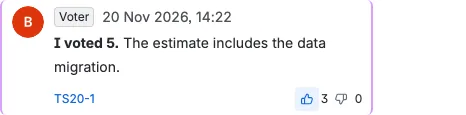
Every message has a single action row below the message text. The row has a square thumbs up button and a square thumbs down button, with the number of reactions beside each button. On your own messages the row also has a square edit button and a square delete button, the same size as the reaction buttons. The reaction buttons, and the edit and delete buttons on your own messages, sit at the right edge of the action row for every participant. While a message you just sent is still being saved, its action row is already present but its buttons are disabled, so the layout does not jump when the message is confirmed. Each reaction is a per-user count: clicking a button adds your reaction, and clicking the same button again removes it. Your reaction and the counts update right away, and both reaction buttons stay available while the change is saved. Counts also update for everyone right away. If a reaction cannot be saved, it is rolled back.
Editing and Deleting
You can edit or delete only the messages you wrote. Editing a combined message changes all of its text. The edit and delete controls in the message action row are the same size as the reaction buttons. While an edit is open, the edit button shows a loading indicator and is disabled. Deleting a message asks for confirmation, since the action cannot be undone. The message disappears as soon as you confirm, without a spinner on either button. If the delete cannot be saved, the message comes back. Editing a private message keeps its privacy setting, and you can change that setting while editing.
Private Messages
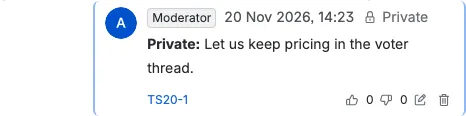
The Private toggle is available to moderators and voters. Private messages are visible to moderators and voters only; guests can read public messages but cannot send or see private ones (unless they wrote the message). Guests always send public messages even if a private toggle is visible. Reactions follow the same rule: you can react only to messages you can see, so a guest cannot react to a private message.
New Message Notifications
When a new message arrives while you are on another part of the panel, a red dot appears on the Chat tab. Guests are not notified about private messages.
Planning Session Chat Without a Selected Work Item
In Refinement/grooming, Capacity planning, and Standup, the Chat tab is always available and always shows the full session conversation: every message sent from the planning session, ordered by publish time, plus messages sent from outside the session for the work items the tab shows.
- In Refinement/grooming, the same chat appears in the selected work item's Chat tab, when a perspective row is open in alternative voting, and when no row is selected. With no work item, the right panel shows a Details tab with the no-selection message and a Chat tab with the session conversation.
- In Capacity planning, the tab stays available when a work item is selected, when no work item is selected, and when a closed sprint is selected. The conversation is the same in every case and includes every message sent from the session, plus messages sent from outside the session for the work items in the capacity plan. A selected work item only chooses where a new message is sent: the work item chat. With no selection or a closed sprint, a new message goes to the planning session chat.
- In Standup, the side panel keeps the Chat tab available with no work item selected. The conversation is the same merged conversation and includes every message sent from the session, plus messages sent from outside the session for every work item the standup shows. The focused work item only chooses where a new message is sent.
The tab you choose is remembered in the planning session. When you follow the moderator, your tab switches with the moderator. The same tab opens after you reload the page. This applies to the Details and Chat tabs in the Refinement/grooming side panel and to the Chat tab in alternative voting. Changing the focused work item never moves the Chat tab and never resets its messages or its Load more ... position.
Chat messages and their reactions are kept for 72 hours after the last change. Completing a planning session removes both kinds of message and their reactions.
When to Use Chat
- Discussing estimation discrepancies during a voting round
- Clarifying requirements before casting votes
- Note-taking and context sharing during planning sessions
- Quick polling with thumbs up/down reactions