
Voting Session Controls
Updated
This page explains the moderator and voter controls available during a voting session.
Session Lifecycle
A voting session moves through these states:
- Inactive: No session is running. The moderator clicks Start to begin.
- Active: Participants cast votes. A progress bar shows the remaining time.
- Paused: The moderator can pause to discuss before continuing.
- Completed: All votes are in. The moderator reviews and accepts the result.
A timed round is completed by the server when its countdown ends, even when nobody has the work item panel open. If the round produced no real estimate, it is cancelled instead of completed. Votes made only with the extra emoji cards count as no votes.
Changing a perspective setting that shapes the round ends the running sessions for that perspective. This covers the card deck, the free scale range, the parametric setup, the vote duration, auto-complete, and asynchronous voting. Changing the name, description, Work types, Open voting, certainty, variation, averaging, card titles or images, or the estimation target and fields is safe while people are voting and never ends a session. The perspectives guide lists both groups.
Start, Pause, Resume, Cancel, Restart, and Complete take effect right away. The controls do not lock while a change is saved: pressing Start shows the active controls, Pause shows Resume, Resume shows Pause, Cancel returns to Start, and Complete shows the completed controls at once. You can keep using the panel while the save finishes. Pausing stops the progress bar and the remaining time at once. Resuming continues them from where they stopped, so time spent paused does not count against the round. If an action cannot be saved, the panel returns to the previous controls and the progress bar returns to its previous position. Accept is the exception: it shows Updating estimation fields, please wait... until the estimate is written. Complete follows the Open voting setting: with it on, the completed controls appear at once; with it off, the button shows a spinner and stays disabled until the completion is confirmed, so the hidden votes are revealed only then. A delayed update from an earlier session never affects a newly started one. If the same work item is open in the space page and in the Jira issue view at the same time, a vote, a pause, or a completion in one panel appears in the other without a refresh. This also applies when open voting is off: the other panel shows your own card, because it reads the session again for you.
Voting Card Sequences
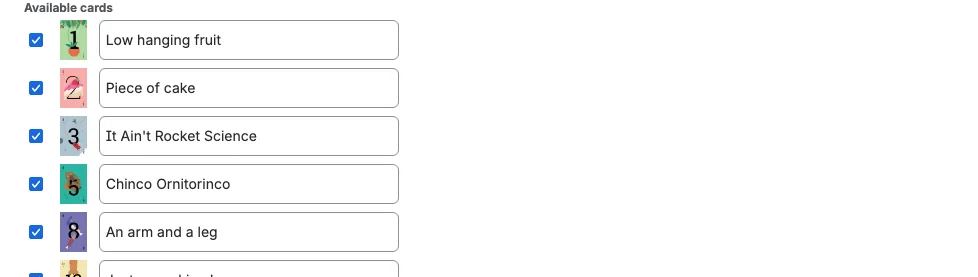
Scrumpy supports seven card sequences, set per perspective. The full deck of a sequence is listed below; the Available cards setting can narrow it to a subset.
| Sequence | Cards |
|---|---|
| Regular | 0, 0.5, 1, 2, 3, 5, 8, 13, 20, 40, 100, 200, ... up to 700 |
| Fibonacci | 1, 2, 3, 5, 8, 13, 21, 34, 55, 89, 144, 233, ... up to 2584 |
| Tens | 0, 10, 20, 30, ... up to 160 |
| Fingers | 0 through 16 |
| Dice | 1 through 18 |
| T-Shirt | XS, XS/S, S, S/M, M, M/L, L, L/XL, XL, XXL, XXXL, A, B, C, D, E, F |
| Free Scale | Any integer between a configurable minimum and maximum |
| Parametric | A number calculated from named parameters and a formula |
T-shirt cards have an editable story point value beside each card title in the perspective settings. Scrumpy uses these values when it calculates the result, so you can match the sizes to your team's own story point scale. The values must always grow from the first card to the last. The result shows the size label when the perspective writes a T-shirt field, and story points otherwise.
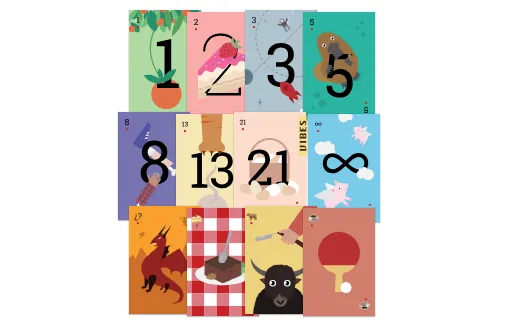
The highest values in the Regular (200 to 700) and Fibonacci (233 to 2584) sequences have no dedicated illustration. Their cards use the built-in lettered fallback artwork instead, while the tooltip still shows the number.
For Free Scale, voters use a slider to pick any number in the defined range instead of clicking fixed cards. Moving the slider only updates the preview; the vote is cast by pressing the Vote button below the slider. The slider position is remembered for this browser tab and this voting session, so a page refresh puts it back where you left it, even before you vote; a new session starts from the middle again. The Vote button allows one vote per slider position: it disables right after you press it and becomes available again when you move the slider. It also stays disabled while your recorded vote is an extra emoji card, because no number has been picked yet. Once a vote is recorded, a Withdraw button appears beside it, and pressing it removes the vote (the same as removing a card vote). The selected number appears large above the slider, with a small sp suffix. The converted duration appears only when the estimation target writes a time value: a time board or a Time field shows the duration, and a Field target with both a story points field and a Time field shows both, for example 5 sp · 1 day 3 hours. A numeric board or a story points field shows story points only, and the perspective settings explain that the duration is not written. If your current vote is an extra emoji card, that card's value shows there instead, and moving the slider replaces it with the slider value; your vote stays on the extra card until you press Vote.
For Parametric, voters see the configured parameters stacked in the order the space administrator set. Each parameter shows its name above, a range control, and its current value below. The formula result appears in large text below the list with an sp suffix. The converted duration is appended only when the estimation target writes a time value: a time board or a Time field shows the duration, and a Field target with both a story points field and a Time field shows both, for example 5 sp · 1 day 3 hours. A numeric board or a story points field shows story points only, and the perspective settings explain that the duration is not written. It is always a whole number: the value is rounded to the nearest whole number (halves round up), and a result below zero is shown and voted as 0. The averaged result of a completed session is rounded the same way. To the right of the result, a small badge shows how far the rounded number is from the exact formula result, using at most two decimals: a negative value means the exact result is higher than the rounded number, and a positive value means it is lower. The badge shows 0 when the result is already whole, and it is hidden when the formula cannot be calculated or when the formula value is below zero, because that result is clamped to zero instead of rounded. The parameter values themselves may be negative when the perspective's minimum is negative. Move any parameter to recalculate the result, then press Vote. A recorded parametric result is shown when you reopen the panel; move a parameter to change it, or press Withdraw to remove it. A Vote button stays disabled until you move a parameter when you already have a recorded result. Parametric perspectives are not available as a bulk voting row in the planning table; use the work item panel. Your vote also records every parameter position, so the Results and Quadrant or Radar views can draw the parameters behind a recorded result after the session completes. Parametric voting also offers a Quadrant view of your current slider positions when the perspective has exactly two parameters, and a Radar view when it has three or more, described under Voting Tabs. Your slider positions are remembered for this browser tab and this voting session, so a page refresh puts them back where you left them, even before you vote; a new session starts from the middle again. A recorded parametric vote also puts the sliders on the positions that vote carries, so the voting panel and the planning table's bulk editor always show the same positions: voting here moves the bulk editor, and voting there moves these sliders.
Extra cards are optional fun values (infinity, phoenix, cookie, buffalo, ping pong) that appear after the regular deck when you enable them in the perspective settings. Hovering a Regular or Fibonacci card shows a playful label such as "Piece of cake" or "When pigs fly". With minimalistic card visuals, the tooltip shows the estimate value instead of the playful label. A custom card title, set per card in the perspective's Cards settings, replaces both the playful label and the estimate value in the tooltip. Custom titles must contain at least one letter and be unique within the card sequence, including against the built-in title of another card. Typing a card's built-in title removes the custom title and restores the default.
Perspective Tabs
Each perspective appears as a tab above the voting stage. Hovering a tab shows the state of that perspective's session: "No voting session yet" when idle, or how many voters voted and how much time is left when a session is active.
The panel shows this complete view at once. The tabs, the session state, the votes, and any rank labels appear together, so the layout does not shift while it loads.
In the Refinement/grooming tab, the moderator's selected perspective tab (including Chat) is shared with everyone in the planning. Participants who are locked to the moderator follow it, so the moderator also switches tabs for them. If you click another tab, the lock turns off and your own tab is remembered for the current browser tab. Clearing Lock to moderator stops you following too, and keeps the panel on the tab you were following.
A yellow M badge marks the tab the moderator is viewing while the moderator has the same work item selected, even when it is the tab you are on. Use it as your pointer to the moderator's view: it stays on the moderator's tab after you open another tab, so you can see how far your tab has drifted from the moderator's. While you follow the moderator, the two tabs are the same. The badge is hidden when you have unlocked and focused a different work item. In the work item issue panel, the tab you last opened, or the Chat tab, is remembered for the current browser tab.
Below the tabs, the perspective's description appears in bold; when it has no description, No description is shown. The small gear beside it opens that perspective's settings in a new tab.
When you open the work item panel and its voting session belongs to a planning session, a small line below the description says so, and the words planning session link to it. The line stays visible after the session completes. The link opens the space page with the planning session selected, in a new browser tab. The line is not shown in the Refinement/grooming tab, where the planning session is already open. When a space administrator hides the Space Estimations page in space settings, the line and its link are not shown.
If no perspective applies to the work item's work type, the panel shows No voting perspective with the work type name and asks you to configure the space's perspective settings.
Link to the Space Page
Above the perspective and chat tabs, a short note invites you to try the space page for the full planning session experience when the work item is not already part of a planning session. Click space page to open it in a new tab, or choose Dismiss to hide the note. Once dismissed, it stays hidden for the rest of your browser tab session, and it does not appear in the planning sessions tab. When a space administrator hides the Space Estimations page in space settings, the note is not shown.
Moderator Controls
Start
Begins a new voting session for the current perspective. All eligible voters can now submit their estimates.
Pause / Resume
Temporarily stops the session. This is useful for team discussions when votes differ a lot. The timer is suspended while paused, and the progress bar and remaining time stop at once. After you resume, the countdown continues from where it stopped, so the pause does not use up the round. The panel shows who paused the session. Asynchronous sessions cannot be paused or resumed.
Cancel
Ends the session entirely. All votes are discarded and the session is removed.
Restart
Only a moderator sees this button, and only while the session is completed. It sits before Cancel. Pressing it starts a new round for the same perspective right away, with the configured required voters, so the panel returns to fresh voting without leaving the work item. The completed result and its votes are discarded, and the timer starts again from the beginning.
A restart is not a cancel. The work item keeps its place in that perspective's affinity and dot rankings, and an enforced bucket ranking keeps its mode. The panel goes from the completed result to the new round in one step, with no empty voting screen in between, and the other open windows follow at the same time. If the new round cannot be started, the completed session stays on screen with its result, so you can try again.
Complete
Ends voting and reveals all submitted votes. The result is computed using the configured averaging method.
With Open voting on, the votes are already on screen, so the completed view appears as soon as you press Complete. With Open voting off, the button shows a spinner and stays disabled, and the votes and the completed view appear when the completion arrives, usually a moment later. While it waits, Pause and Resume are disabled too, so the session cannot be paused as it completes. If the completion cannot be saved, the button stops spinning and the session stays active with the votes still hidden. If the session produced no real estimate (no vote, no vote matching an active card, or only extra emoji card votes), it is cancelled instead, whether the moderator completes it or a timed round ends on its own.
Accept
Finalizes the estimate. Writes the result to Jira (according to the perspective's estimation target) and saves the session in the estimation history.
While the write is in progress the panel shows "Updating estimation fields, please wait...". Before accepting, the moderator sees "Cancel to reset or accept to update work item.", while voters see "Waiting for the moderator to accept the result.". If the estimate is accepted but cannot be written to Jira, an error dialog reports the affected issue key.
Set Estimate
Before accepting, the moderator can set a different estimate. Card sequences show an Override dropdown of the available values, and Free Scale shows a number field bounded by the configured minimum and maximum. Parametric also uses a number field, with no fixed minimum or maximum. When the estimation target writes a time value, the converted duration appears as a badge: after the number field for Free Scale, and beside the narrowed Override dropdown for card sequences. A numeric board or a story points field shows story points only. A Field target with both a story points field and a Time field shows both. Voters see the same units in the badges, with the story-point value first and the duration beside it when both are written. A time board or Time field shows the duration only, with no story-point badge. The badge follows the value you pick. This is useful when the team's discussion leads to a consensus that differs from the averaged result.
Beside it, the Override averaging method dropdown lets the moderator recalculate the result with a different method for the current session only. It starts on the perspective's configured method. Choosing another method immediately recomputes the estimate from the submitted votes and updates the override field, so you can compare how different methods read the same votes. The perspective settings do not change, and the next session starts from the configured method again. After recalculating, you can still fine-tune the value by hand.
For parametric perspectives the Override and Override averaging method controls share one line, and an Averaging dropdown sits directly below the Override averaging method dropdown, at the same width, aligned to the right side of the row. It chooses how the final result is built. Story points is the default and works as before: average the story points each participant voted. Parameters averages every parameter position across the participants with the averaging method, then applies the parametric formula to those averaged positions. The averaged positions keep their decimals; the formula result is still a whole story point, like every parametric result. Switching between the two modes recomputes the result and updates the override field. With Parameters and no manual override, the same rounding badge appears at the right side of the final result row. It is hidden once you set an override by hand, when the mode is Story points, and when no vote recorded parameter positions. For card sequences, including T-shirt, Override and Override averaging method also stay on one line. The Override control is 245px wide, each option shows the combined story points, time, and size label when those units are configured, and no separate unit lozenge is shown beside it.
When a parametric session completes, these controls stay visible below both the Results tab and the chart tab (Quadrant or Radar), so you can change the result from either tab. Changing the averaging method also redraws the averaged marker in the chart tab.
Remind
The moderator can send a reminder to participants who have not voted yet. The reminder control appears only while there are unvoted participants and no reminder has been sent for the current round. It disappears as soon as you send the reminder, without a loading wait. Each reminder is recorded in the voting audit. If sending fails, the control appears again so you can retry.
Required Voters
The Who is required? control opens a participant picker where the moderator chooses who must vote before the session can complete. By default every configured voter is required. Non-moderators can open the same control to see who is required, but they cannot change it. When all required voters have submitted, the session completes automatically if automatic completion is on.
Voter Controls
Voters see a set of cards matching the perspective's sequence and active cards. Clicking a card selects it right away. Clicking the selected card again removes your vote, so a vote can be taken back as well as cast. The change is recorded in the voting audit. In open voting, all votes are visible in real time. In closed voting, votes stay hidden until the session completes: the other cards are never sent to your browser, so they cannot be read by inspecting the panel. Only voters can cast a vote: a moderator who is not also in the voters list cannot click a card, and the server rejects the vote as well.
Each click is saved as soon as you make it, and the card changes immediately. You can change your pick at any time. If you click again while an earlier change is still saving, the newest choice is the one that is sent next. If saving fails, the card returns to the last confirmed vote. Free-scale voters use the Vote and Withdraw buttons below the slider for the same cast and remove actions.
Voting Tabs
The planning session's inline voting panel includes a Details tab. Details answers "what are we estimating?" without leaving the panel: the current work item summary appears at the top, and below it the work item description is shown as rich text. The summary and description have no section labels. Participants who are not moderators see the description without an avatar. The summary and description are read from Jira once per work item for the open page and are then reused when you switch perspective or tab, so a repeated visit is instant. A summary or description change saved anywhere in the app updates them right away; a change made directly in Jira appears after you reload the page. If the work item has no description, the tab says so. A summary or description change made in the Details tab appears for other participants without a reload. An edit in one perspective also updates the Details tab of every other perspective in the same panel without a reload. A summary or description edit saves when you click away, switch to another tab, or close the panel, even if the short description pause has not finished. The work item key in the planning table shows the summary in a tooltip.
Only moderators can change the work item. A moderator edits the summary inline and the description in the rich-text editor. The summary edit has no action buttons: click away or press Enter to save, and press Escape to cancel. Clearing the summary shows The summary cannot be empty. in the inline edit and does not save it. The new summary appears immediately, and the planning-table tooltip follows it; if Jira rejects the change, the previous summary returns and an error is shown. The description saves in the background shortly after you stop typing, and switching tabs flushes a pending save. A failed save keeps the content and shows an error. Participants see the same content read-only.
While a session runs in the planning session's inline panel, Results appears with open voting, and a parametric perspective adds its chart tab. The order is Vote, then Results when open voting is on, then the chart tab, then Details. With closed voting and no chart, the panel keeps Vote and Details; with closed voting and a chart, the chart sits between them. The standalone work item panel keeps Vote, Results when open voting is on, and the chart tab, but it has no Details tab.
- Both tab contents use the full width of the voting panel.
- Vote contains the card, free-scale, or parametric voting controls.
- Details in the planning session's inline panel shows the work item summary at the top and the work item description below it. Moderators can edit both; everyone else reads them.
- Quadrant appears for a two-parameter parametric perspective and shows a scatter chart with one axis per parameter. The axes use the parameter's real values, including negative ones, so nothing is scaled to a percentage. Your own dot follows the sliders as you move them, so you can preview your next vote. With open voting, every other participant who voted appears as a dot in a different colour, and a dashed crosshair marks the averaged parameter positions calculated with the perspective's averaging method from the recorded votes only. With closed voting, the Quadrant tab draws only your own dot, with no other participants and no averaged crosshair, until the session completes. There is no legend. The chart is a picture: it cannot be clicked, dragged, or focused.
- Radar appears for a parametric perspective with three or more parameters and shows a radar chart of the votes. Each ray is a parameter, scaled between the parameter's minimum (the centre) and its maximum (the outer ring), so negative minimums work too. Your own polygon follows the sliders as you move them, so you can preview your next vote. With open voting, every other participant who voted appears as its own polygon in a different colour, and a dotted neutral polygon shows the averaged parameter positions calculated with the perspective's averaging method from the recorded votes only. With closed voting, the Radar tab draws only your own live values, with no other participants and no averaged polygon, until the session completes. There is no legend. The chart is a picture: it cannot be clicked, dragged, or focused.
- Results appears while the session is running only with open voting. It contains only the result chart. Before anyone votes it shows an empty state saying that there are no votes yet. As votes arrive, the chart updates.
- The selected tab is remembered in the current browser tab, so a reload keeps your choice. A remembered chart tab on a perspective that is not parametric falls back to Vote.
- When a session completes, the planning session's inline panel keeps tabs whether open voting was on or off. A parametric session shows Results, its chart tab, and Details; a non-parametric session shows Results and Details. The standalone work item panel keeps Results and the chart tab when the perspective is parametric, with no Details tab. Quadrant shows one dot per participant vote in the same colours as the open-voting chart plus the dashed averaged crosshair; Radar shows one polygon per participant vote plus the dotted averaged polygon. The final result control and both averaging controls stay visible below the tabs and work the same from either tab. If a vote was recorded without parameter positions, the chart tab says so instead of drawing it.
Ranking Above the Cards
If a work item has already been ranked in the space page's alternative voting, the voting panel shows a centered rank above the cards:
- Affinity rank for the work item's affinity position
- Dot rank for the number of dots the work item has
Each line reads like "Affinity rank is 3 out of 10 or 30%". The rank is calculated live from the planning session's rankings, so it follows every rerank and dot. A line appears only when the work item has that rank, so an unranked work item shows nothing, and both lines appear together when a work item has both rankings. A ranking does not disable the cards; voters still vote normally in the panel.
When the moderator enforces a ranking in the Bucket voting panel of the work item's planning session, a dismissable informational message above the cards tells you that your vote may count for several work items. If your vote changes more than one voting session, the message is replaced by a dismissable message that lists the affected work items. Each work item opens its Jira issue view.
Panel Header Controls
The voting panel header has two controls:
- Sound toggle: mutes or unmutes sound notifications. This is a quick toggle, separate from the volume slider in your Personal settings.
- Your role badge: shows M for a Moderator who cannot vote, M/V for a Moderator who is also a Voter, V for a Voter, or G for a Guest. Hover it for a tooltip that states the current role, and click it to open the permissions settings.
Viewing Results
When a voting session completes, the results are shown in a chart. Three chart types are available (set in your Personal settings):
- Pie: Circle chart showing vote distribution
- Vertical bar: Bar chart for comparing vote values
- Horizontal bar: Bar chart with readable labels
The result also shows the computed estimate using the perspective's averaging method. Labels follow the estimation target. A numeric board or a story points field shows story points only. A time board or a Time field shows the duration only, for example 1 day 3 hours. When a Field target has both a story points field and a Time field, both appear, for example 5 sp · 1 day 3 hours. A T-shirt perspective shows only the configured parts in one badge, in the order story points, time, T-shirt size, for example 1 sp · S. When the perspective has no T-shirt field, the Override dropdown and the result label show story points instead of T-shirt sizes. When the T-shirt field is configured, every Override option uses the same combined label as the result, for example 3 sp · 8 days · XL, and the separate lozenge beside the dropdown is no longer shown. The same combined dropdown labels and the same 245px width apply to the other card sequences, so a card option shows the story points and duration requested by the perspective fields. The same labels appear in the vote list, the result chart, and the final result. If Story points to hours is set but the target does not write a time value, the duration is not displayed anywhere and the perspective settings explain why. With the Count averaging method the estimate is the number of votes cast, ignoring their values and not counting the extra emoji cards, rounded to the nearest available card. When open voting is on, the results also list each individual vote next to the computed average, marked with a tilde. When the PERT averaging method is selected and at least three different values were voted, the result also shows the deviation, and the smallest and largest votes are highlighted in that list (see Perspectives). Before accepting, the moderator can recalculate the result with a different averaging method or override it by hand (see Set Estimate).
Certainty, Variation, and Deviation
Optional indicators help you read a result. Certainty and Variation are set per perspective in the Voting settings; Deviation appears automatically when PERT applies.
- Certainty reflects how often participants re-voted within the session, not how spread the votes are. When every participant votes exactly once, certainty is 100%, and each extra vote a participant casts lowers it. Certainty is green at 75% or above, yellow from 50% to 74%, and red below 50%.
- Variation measures how widely the vote values are spread around their average. Lower is better. Variation is green at 15% or below, yellow above 15% and up to 30%, and red above 30%. It uses the numeric votes, so it needs at least two numeric votes to appear: T-shirt sizes use the story points you set for each card, and the extra emoji cards are not counted.
- Deviation is how spread out the PERT three points are:
(P - O) / 6. It appears only when the PERT averaging method is selected and at least three different values were voted. While open voting is on, the Optimistic (smallest) and Pessimistic (largest) votes are highlighted in the vote list.
In short, certainty tells you whether participants settled on their votes, variation tells you whether the votes agreed on a value, and deviation tells you how confident the PERT estimate is.
Certainty, Variation, and Deviation appear once the session is completed. When open voting is on, they also appear live while the session is running.
Participant List
During a voting session, the participant panel shows the avatars of everyone who has voted, with a percentage and count of how many of the required voters have voted. While a session is waiting to start, the panel instead shows the avatars of participants who have not yet voted.
Voting Indicators
After casting a vote, you see an Already voted confirmation. If the session uses closed voting (open voting off), you see a Waiting for others indicator while other participants finish voting, keeping estimates hidden until the session completes. When the moderator sends a reminder, unvoted voters see a Please vote! indicator in their own panel.
Asynchronous Voting
When asynchronous voting is on:
- Participants vote at their own convenience
- The moderator collects results when ready
- Sessions cannot be paused or resumed
- There is no countdown timer or progress bar unless a deadline is set
Voting must complete until
Async sessions have no fixed voting window, so the moderator can set a deadline. While a session is active and not yet completed, moderators see a Voting must complete until control with a date picker and a time picker:
- The date cannot be in the past, and times are offered in 30-minute slots.
- Choosing both a date and a time sets the deadline.
- Once set, a progress bar and a countdown appear, and the session completes when the deadline is reached.
- Clearing either the date or the time removes the deadline and hides the countdown again.
The control is visible only to moderators, and only while the session is not completed.
Password Protection
If the moderator has set a password in space settings, anyone opening a Scrumpy surface must enter it before reaching the voting interface or live updates. This includes the work item panel, the Space Estimations page, the estimation log, and the add-to-planning action. Live voting, chat, and planning updates are only delivered after the password is entered. Space settings are not locked by this password; they follow the Jira permissions for the space. The password must be at least 8 characters, and the server enforces that limit even when the settings form is bypassed. Scrumpy checks the password after you pause typing, not on every keystroke, and it does not send an entry shorter than eight characters, so an incomplete password never spends an attempt. It is stored as a slow salted hash, so it cannot be read back or reused to sign in without the password, and it can only be changed or removed. Live updates also require that you can browse the space in Jira, with or without a password. After five incorrect attempts in fifteen minutes, the account is locked out for fifteen minutes and the password field is disabled. Every attempt counts on its own, even when several are sent at the same moment. A successful entry clears the failed-attempt count. After you enter it once, Scrumpy remembers it for your account for 30 days and shares it across every Scrumpy surface, so you do not have to enter it again. The remembered entry is cleared when the password is changed or removed.
While a password is set, the Permissions tab shows a warning message that the space's data is protected, with Remove protection and Dismiss actions.
Team Information
The Team panel in the Scrumpy sidebar shows how many moderators and voters are set for the space, so everyone can see who can start sessions and who can participate. It shows counts rather than names.
Your Role
The Scrumpy voting panel header shows a badge with your current role: M for a Moderator who cannot vote, M/V for a Moderator who is also a Voter, V for a Voter, and G for a Guest. Hover it for a tooltip that states your role. The badge is a link to the Space settings > Scrumpy Poker permissions, where a space administrator assigns the roles; when the permissions change, the badge updates in real time without a refresh. A moderator can vote only when also added to the voters list.
When a voting session is active and you cannot vote, the panel shows a note below the perspective description: it explains that you must be in the voters list to cast a vote and links the words voters list to the Space settings > Scrumpy Poker permissions in a new tab.