Creating a planning session
Updated
In Scrum, a planning session is the grooming or refinement session: the regular time the team sets aside to discuss upcoming work items and estimate them together. Scrumpy keeps the session, its work items, and the team's estimation perspectives in one place, so the discussion and the estimates stay together.
Open the planning sessions page
Go to the space page and open the Refinement/grooming tab. A moderator presses Create above the session tabs, then gives the session a name, a short description, and a schedule. Use Regular for a start time plus a duration such as 30 minutes, or Long lasting when the session has a specific end time. The planned time is the refinement window, and the header shows how much of it is left while the team estimates.
Add the work items
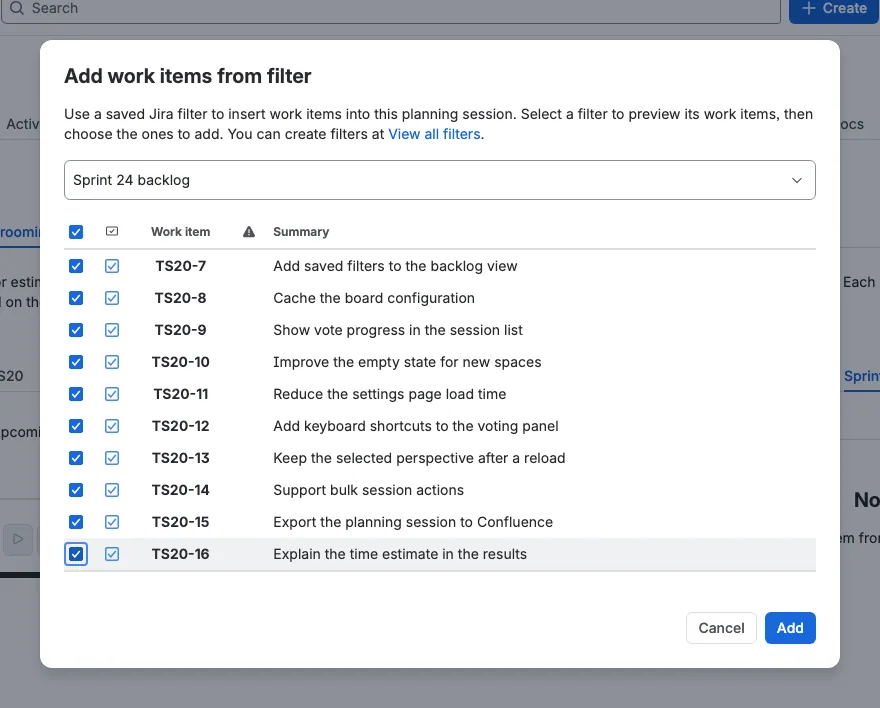
Press Add from filter, choose a saved Jira filter, tick the work items you want, and press Add. A filter is the quickest way to bring in a backlog slice, for example the next sprint's stories or a saved query for defects. You can add more work items later, and the same filter can be reused for the next session.
Give each estimation style a perspective
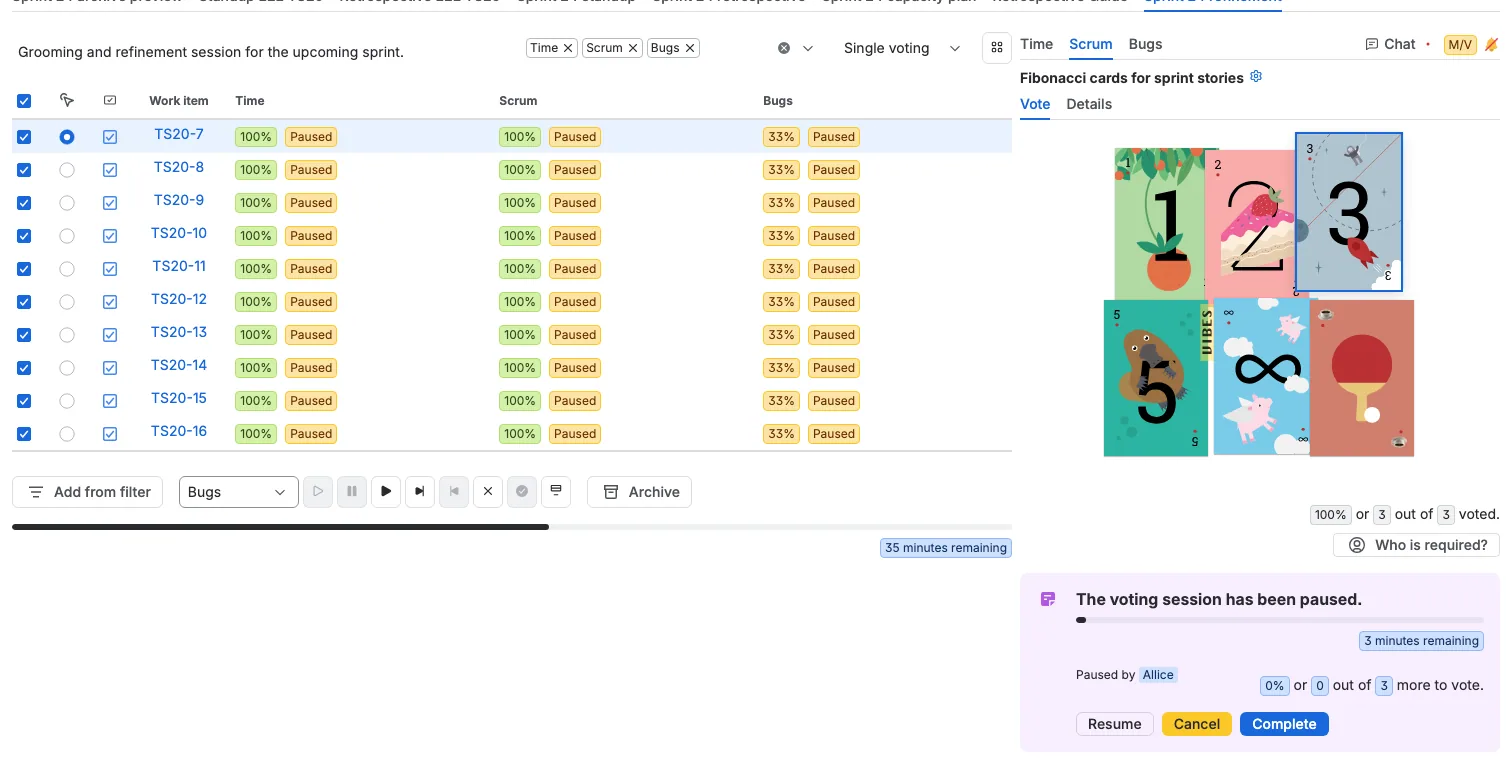
Each perspective is a column in the planning table, and the same work item can be estimated in every one of them. This session shows three perspectives:
- Time uses a free scale and writes the result to a board that estimates in time.
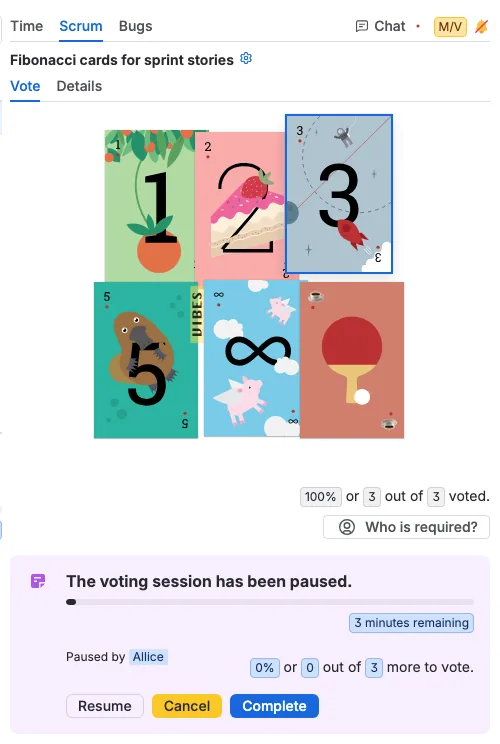
- Scrum uses Fibonacci cards, limited here to 1, 2, 3 and 5, plus the infinity and coffee cards.
- Bugs uses T-shirt sizes.
Use Visible perspectives to hide the perspectives the team does not need for this session. The choice belongs to the session, so the table stays focused on the work at hand.
Estimate one work item or many
Work through the table one work item at a time, or tick several work items and use the actions above the table to start, pause, resume, complete, accept, or cancel voting for all of them. The work item you select in presenter mode opens in the panel on the right, where the team votes with the controls of the active perspective.
The example below has all ten work items selected, the sessions for Time, Scrum, and Bugs started and then paused, and the first work item open in the Scrum panel. From here the team can estimate the next work item, resume the sessions, or complete them in bulk when the discussion is over.