
Reading the estimation log
Updated
Every time a moderator accepts an estimate, Scrumpy records it in the estimation log for that work item. The log keeps the sizing decisions of the last 90 days, so you can see how an estimate changed over time, which perspective produced each value, and who took part.
Find the log on a work item
Open the work item in Jira, expand the Activity area, open Apps, and choose Estimation log. The log lists the accepted estimates for the work item, newest first.
If the space has a password, enter it first: the log asks for the space password before it shows any entries. Scrumpy also checks that you can open the work item in Jira, so a work item hidden from you by Jira issue-level security shows no history.
A space administrator can hide the log by hiding both the Scrumpy panel on work items and the Estimations page in space settings. While either one is shown, the log stays available.
Read an entry
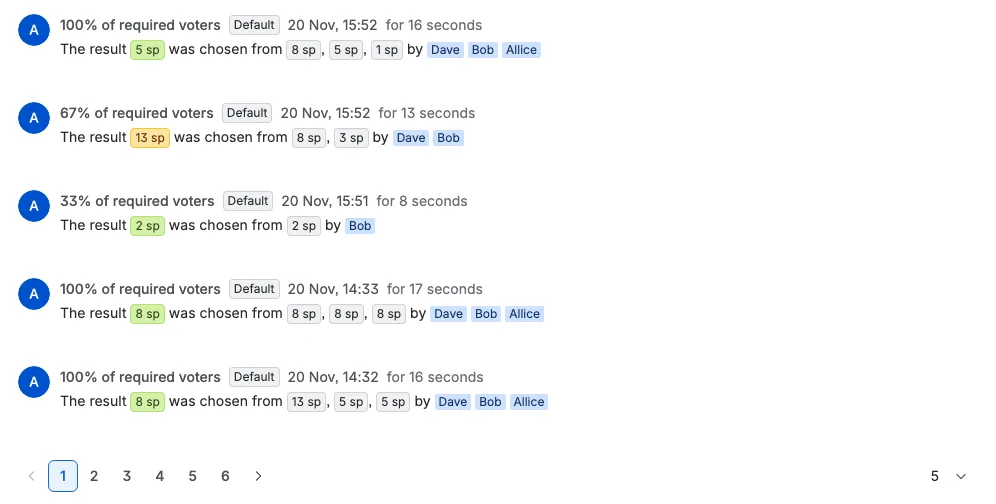
Each entry is one accepted estimate:
- Moderator: the avatar of the person who accepted the estimate
- Completion: how many of the required voters had voted, such as 100% of required voters
- Perspective: which estimation perspective produced the value
- Time: when the estimate was accepted, in your Jira timezone
- Duration: how long the vote took, for example for 4 minutes
- Result: the accepted value in a badge, then every vote in the deck's labels and the people who cast them
The result badge is green when the accepted value matches the computed average. If the moderator chose a different value before accepting, the badge is yellow and hovering it shows Overridden by the moderator.
Values follow the perspective: story points carry the sp suffix, a T-shirt perspective shows the size labels, and a time perspective shows a work-day duration.
Move through the history
The log shows 5 entries per page by default. Use the page numbers at the bottom to move through older estimates, and the selector beside them to show 5, 10, 15, or 20 entries per page. Changing the page size returns you to page one. The order never changes: the most recent accepted estimate is always at the top.
Watch the log during a session
When someone accepts an estimate for the work item while the log is open, the new entry appears at the top without a reload. If you are reading an older page, the log returns to page one so the new entry is visible. In a password-protected space, live updates start after you enter the space password.
See the trend across the space
The estimation log is per work item. To see the whole space, open Space settings > Dashboard, where accepted estimates are grouped into charts by perspective and by day, with the average certainty, variation, voting time, and number of voters. Use the range selector to focus on the last weeks or on all time.
Know how long the history stays
Entries are kept for three months (90 days), then removed automatically. A space owner can clear every estimation log entry for the space at once from the space settings Dashboard tab; that action cannot be undone. Archiving a planning session to Confluence keeps its estimates on a Confluence page beyond the 90 days.