
Sprint standups
Updated
The Standup tab reviews one sprint, one board, or one saved filter inside a planning session. Work items are shown in the lanes of the selected scope, in a shared standup order that starts as the order Jira returns. Every planning session keeps its own data for each board and sprint, and for each filter. Switching planning sessions shows that session's data, and when the session you last opened is no longer available, the first planning session opens instead. The assignee avatar is on each card, but assignee grouping does not control the position. Status moves stay stored in the standup session until you apply them to Jira.
The side panel gives you two compact views of the same standup. The Status table groups the work by board column, and the Assignee table groups it by person. Both show the same flags, passed checks, staged changes, and estimates as the board.
Everything you change on this screen is virtual: status moves, flags, the order, and the work items you add from a filter stay in Scrumpy. Jira changes only when you select Apply.
Before you start
- Moderators can create a new planning session with the Create button at the top of the tab.
- The space does not need a board. When the space has a board, the standup uses the board and, on a Scrum board with a running sprint, that sprint. When the space has no board, the standup reads a saved Jira filter.
- A planning session must exist. Moderators choose the shared board, sprint, or filter. Locked participants follow that selection.
- The standup is locked by the space password when one is set.
Choose what the standup shows
- Open the Standup tab and pick a planning session from the tabs above the board.
- The space has a board: pick a board. If the board is a Scrum board with a running sprint, pick a sprint too. The sprint list shows only the sprints that are currently running; sprints that already ended and sprints that have not started yet are not listed. When the board has no running sprint, the sprint selector is hidden and the standup shows the work items currently on the board. Only a moderator changes the shared board. A voter or guest can pick another sprint locally, which detaches the viewer from the moderator.
- The space has no board: the board selector and the sprint selector are hidden. Pick a saved filter, and the standup shows only the work items that filter returns from this space. The filter selector sits in the toolbar next to the estimate perspective selector. The perspective selector chooses whose estimate the cards show; the default perspective is selected at first. While no filter is selected, the toolbar asks you to choose one and the standup shows no work items. A voter or guest can pick another filter or perspective locally, which detaches the viewer from the moderator.
- Use the Max per column dropdown before the columns selector to cap how many work items each column shows. The options are 5, 10, 15, 25, 50, 100, 150, and 200, and the default is 15. The standup reads up to 200 work items for the selected scope in one read, and the dropdown only filters the loaded work items. Changing the cap does not read Jira again. A column with more work items than the cap shows a left-aligned hint at its bottom. A capped column ends with a hint that shows the number shown and the number loaded, for example showing 15 of 23. The numbers sit in badges on one vertically centered line. Work items beyond the cap are already loaded when the scope read includes them and stay hidden until you raise the cap. A work item the standup loaded before it was hidden keeps its place in the shared order and its staged changes. A moderator shares the cap with everyone who is locked to the moderator. If you pick another cap while you are locked, you detach and keep your own choice in this browser tab. The same cap applies to the Status tab: each column lists only the first work items up to the cap, and a capped column ends with the same hint row. The hint row is not a work item and cannot be dragged.
- Next to the limit dropdown, use the columns multi-select to choose which columns are shown. It starts empty and shows every column. Select one or more columns to show only those, or clear the selection to show all again. A moderator shares the visible columns with everyone who is locked to the moderator. If you pick another selection while you are locked, you detach and keep your own choice in this browser tab.
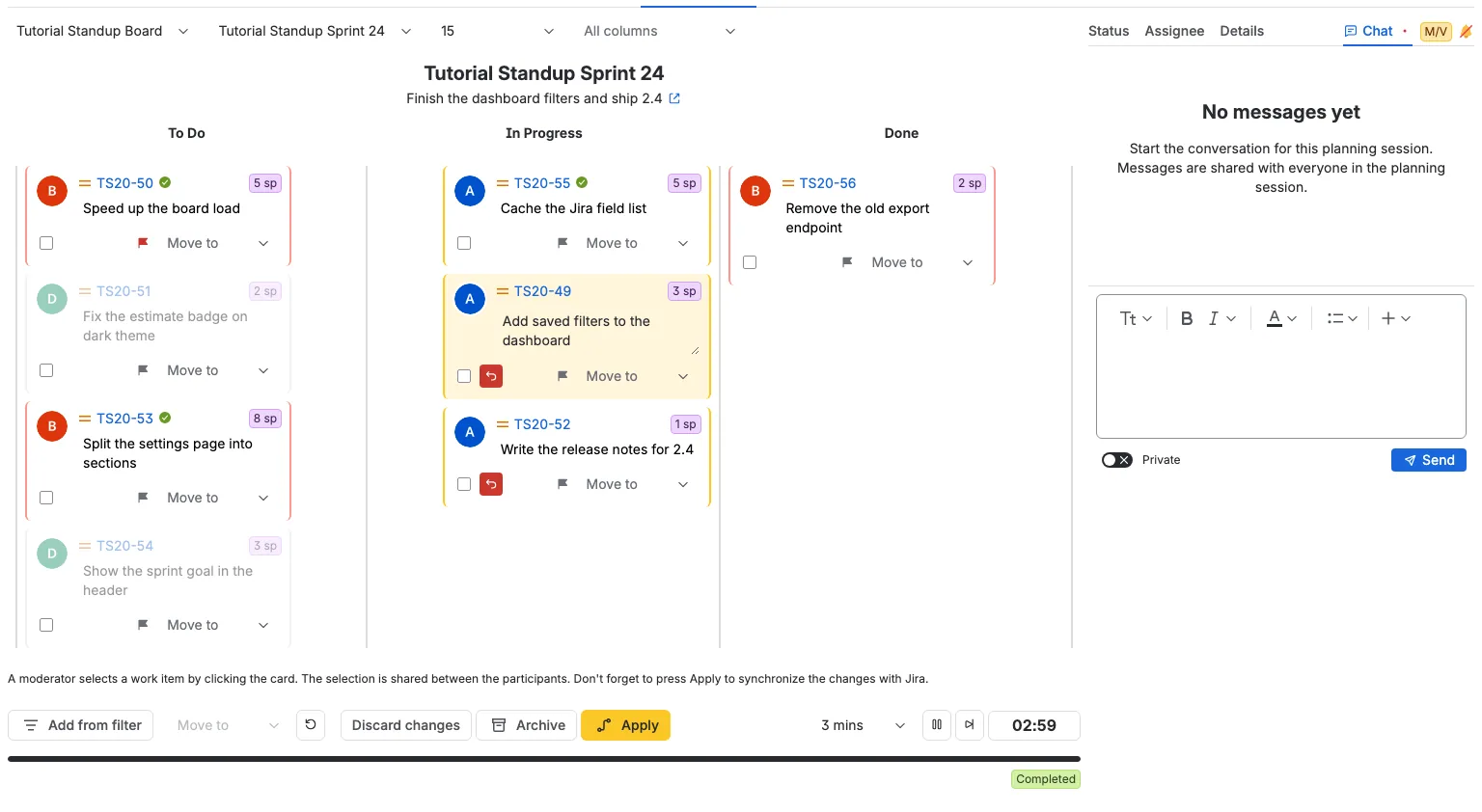
- The sprint name and goal sit above the lanes. The link icon opens the sprint in the Jira backlog in a new browser tab. A board without a running sprint hides that line completely, so the lanes start right under the toolbar. A filter standup shows the filter name instead.
Work items that belong to another space are never shown, even when the selected sprint, board, or filter includes them. The per-column cap counts only the work items of this space.
Add work items from a filter
A moderator can stage more work items for the sprint from the standup. The Add from filter button sits next to the primary Edit button at the start of the bottom action bar, and it appears only while the standup shows a running sprint.
- Select Add from filter.
- Pick a saved Jira filter, an active sprint, or the backlog. The dialog previews the work items of the choice.
- Select the work items you want, then select Add.
To start over, clear the picker. The chosen source is dropped, the search box empties, and the first 100 shared filters return.
The work items appear in their status columns with a New badge. Every participant sees them right away, like a staged status move. You can still move, flag, or reassign a staged work item. Jira is not changed until a moderator selects Apply, which moves the staged work items into the sprint together with the other standup changes. After Apply the badge disappears and the work items are part of the sprint.
- Work items that already belong to the sprint, or that belong to another space, cannot be selected.
- A work item that sits in another sprint moves to this sprint on Apply.
- A staged work item in a status that is not mapped to a board column stays hidden, like any other work item.
- To remove one staged work item before Apply, select its undo button. Discard changes removes every staged work item with the other staged changes.
- If Jira refuses to add a work item, it stays staged and the error names it.
Read the board
Each column of the selected board is a lane, in the board's configured order. In a filter standup, each status of the space is a lane, ordered by status category. Every visible column shares the width of the board equally, so all columns stay side by side and get narrower as you show more of them. Work items whose status is not mapped to a column are not shown on a board. Inside a lane, work items follow the shared standup order. The lanes start in the order the sprint shows on the board the first time you open the standup. That is the only time the Jira order is used. From then on the standup keeps its own order and every participant sees it. A work item that joins a sprint later, or whose status changes in Jira, appears at the bottom of its column and keeps that place. A reorder someone makes in the Jira backlog never changes the standup order. The order is not grouped by assignee. Each card keeps the note look of a retrospective note: the accent border, the regular assignee avatar, the priority icon, the work item key as a link, and the estimate badge at the top right, the summary in a two-line subtle inline text area, and the action row. The priority icon appears when the work item has a priority; hover it to see the priority name. The key link opens the work item in the Jira view issue dialog. A work item the team has passed shows a small green check right of its key. At the top right, a badge shows the estimate of the work item: story points when the selected board estimates in story points, a duration when it estimates in time. A work item without an estimate shows no badge. The card does not show the last updated time. The rounded card border uses a light accent color from the Atlassian palette. Every card assigned to the same person uses the same border color, different assignees get different colors, and an unassigned card keeps the usual own or other assignee border. An unselected card background stays neutral. A selected card uses a light tint of its own border color. When an assignee is marked absent, that person's cards replace the assignee color with a gray border, and the avatar and text on those cards are dimmed. Own work items align to the right of the lane and other assignees' work items to the left. A card without an assignee shows the same empty avatar image as a retrospective note without an avatar. The status is shown by the column, not repeated on the card. A moderator can edit the summary in place: select the summary, change it in the two-line text area, then click away. The summary saves when the field loses focus. Voters and guests see the summary read only. The inline text area is left aligned, shows the Work item summary placeholder, and grows vertically when the summary is long.
Details, chat, and sound
A side panel sits to the right of the standup. It has a Status tab and an Assignee tab on the left, then Details or the perspective tabs when a work item is selected, and the Chat tab on the right, followed by the red video link icon when the planning session has one, your role badge, and the sound bell. The side panel is 400px wide. When nothing is selected, it shows Status, Assignee, and Chat.
The moderator chooses which tab everyone sees. Locked participants follow the tab as the moderator changes it. When you detach from the moderator, you can choose your own tab. A yellow M badge marks the tab the moderator has open: Status, Assignee, Details, a perspective tab, or Chat. Every non-moderator sees it, whether they follow the moderator or browse on their own, so the moderator's current tab is always clear.
- Chat always shows the full session conversation: every message sent from the planning session, plus messages sent from outside the session for every work item the standup shows, ordered by publish time, and every work item message keeps its work item key link. The focused work item only chooses where a new message is sent: that work item's chat. With no work item selected, a new message goes to the planning-session chat. The conversation and the selected Chat tab stay the same when you change the focused work item, and the conversation is shared with the other tabs that open the same planning session.
- Details appears on the left when a work item is selected and no perspective tab is shown. It shows the summary and description of the selected work item. A moderator can edit both; voters and guests see them read only.
- Perspective tabs appear before Chat when a work item is selected. Each tab is a perspective whose estimation target is the board and whose estimation board matches the board selected in the Standup. A perspective for another board does not appear. A perspective tab already shows the work item details, so Details is hidden while at least one perspective tab is shown. The tabs disappear when no work item is selected.
- The bell at the right of the tabs controls sound notifications for the active chat. Select it once to turn sound on. The bell starts muted.
- The role badge before the bell links to the Permissions settings.
Flag a work item
A flag marks a work item that needs attention. The flag button sits at the right of the card action row, before the Move to dropdown. It shows the Jira flag: a work item that is already flagged in Jira opens with a red flag. Select the flag button on an unflagged work item to stage a flag, then press Apply to write the Jira Flagged field. Select a red flag to stage clearing it, then press Apply to clear the flag in Jira. Selecting the same button again before Apply returns the work item to the Jira state. The flag is shared with every participant as soon as you select it, but Jira is not changed until Apply. If Jira refuses the change, the flag stays staged and the error names the affected work items. A moderator can flag any work item, and a voter can flag only the work items assigned to them. Guests see the flag and its tooltip but cannot change it. Discard changes also removes the flag changes you can discard once you confirm. The flag belongs to the standup session and is not a separate Jira comment or label. Selecting the flag changes the button at once, and the participant who selected it ignores the echo of their own change, so a delayed echo cannot undo a newer toggle.
Mark the work item under discussion
A moderator clicks the card of the work item the team is discussing. The card itself is the click target: the avatar, the key, the priority, the estimate badge, the summary, and the empty space around them all select the work item. The flag button, the bulk checkbox, and the Move to dropdown in the card action row keep their own behavior and do not change the selection. The whole card is highlighted for everyone who is locked to the moderator until the moderator clicks it again. A voter or guest can click a card to highlight it locally, which detaches the viewer without changing the shared selection. The shared selection changes immediately without reloading the board. The selecting participant ignores the echo of their own selection, so a delayed echo cannot move the highlight back. Every non-moderator also sees an M badge on the work item the moderator has selected. The badge stays visible whether you follow the moderator or view the standup locally, so the moderator's current work item is always clear. When you can also check that card, the badge sits to the right of the checkbox. A small left-aligned hint below the columns and above the action bar also explains that a moderator selects a work item by clicking the card, that the shared selection is between the participants, and that Apply must be pressed to synchronize the changes with Jira.
Check the work in the Status table
The Status tab is the first tab of the side panel. It lists every work item of the sprint, of the board when no sprint is running, or of the selected filter, in one table. Each board column is a wide row with its name in the center, and the work items of that column sit under it. Only the columns you show on the board appear here.
Use this table when you want to walk the sprint in order without scanning the full board. The Max per column cap applies here too, so a crowded column ends with the same hint row as the board.
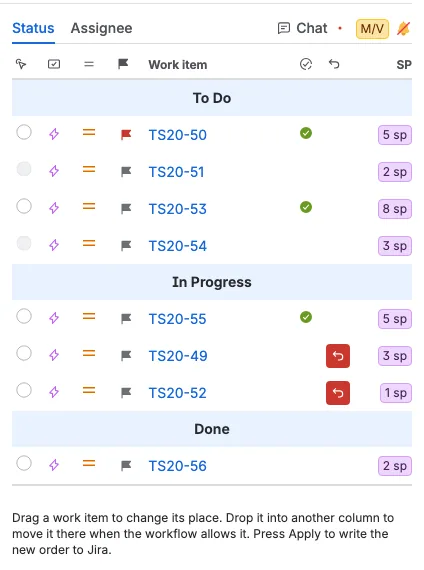
- Each row shows the work type icon, the priority icon, the flag button, the work item key, a green check when the work item is passed, the undo button, and the estimate. The key opens the work item in Jira.
- The narrow column after the work item key shows a green check once the team has passed the work item. A work item is passed when the moderator forwards its countdown, or when the moderator selects another work item or clears the selection after its countdown has run out. A countdown that only runs out does not mark it. The check appears in the same place in the Assignee tab and next to the key on the card, and it stays for the rest of the planning session and scope. A passed check counts as a change, so Discard changes removes every check for everyone in the standup, and Apply clears them too when it writes the staged changes.
- A moderator has a radio button in the first column to select the work item under discussion. Everyone else sees a yellow M badge in the first column, on the work item the moderator selected, and a radio button for their own selection. The table and the board keep the same selection: pick a work item in one place and the other follows.
- Drag a work item to change its place in its column. The row and the board move at once, before the change is saved. The person who dragged ignores the echo of their own change, so a delayed echo cannot move the row back or undo a newer drop.
- Drop a work item into another column to move it there. This works only when the Move to menu of that work item offers a status of that column and the work item has no staged move. If the choices for that work item have not been read yet, the board reads them first and then drops the work item. A work item with a staged move keeps its place, just like its disabled Move to menu, until you undo or apply that move. Otherwise the row returns to its place. A dismissible warning explains why.
- A moderator can drag every work item. A voter can drag only the work items assigned to them. Guests can read the table but cannot change it.
- Select the flag button to stage a flag or clear it, exactly like the flag on a card.
- The undo button appears on a work item with a staged change: a moved place, a staged status move, or a staged flag. The card on the board shows the same undo button at the same time. Select either one to remove the staged change without changing Jira. You see the button only when you may discard that change, so a guest or another person's work item shows no undo button. Undoing a staged flag returns the work item to its original Jira flag state.
- Press Apply to write the new order to the sprint rank. On a board without a sprint, the board rank is written instead. In a filter standup there is no board to rank, so the order stays in the standup and only the status and flag changes reach Jira.
Check who works on what in the Assignee table
The Assignee tab follows Status in the side panel. It groups the same work items by the person doing them. Each assignee is a wide row with the person's name in the center, and that person's work items sit under it. Unassigned sits last and holds the work items that have no assignee.
The Max per column cap applies here too, so the table lists only the work items the board shows. A person whose work items all sit beyond the cap is not listed, in the table or in the Participants picker, until you raise the cap.
Use this table when you want to see how the sprint is spread across the team, or when you need to hand a work item to someone else. The presence checkbox at the left of each row shows who is taking part in the standup.
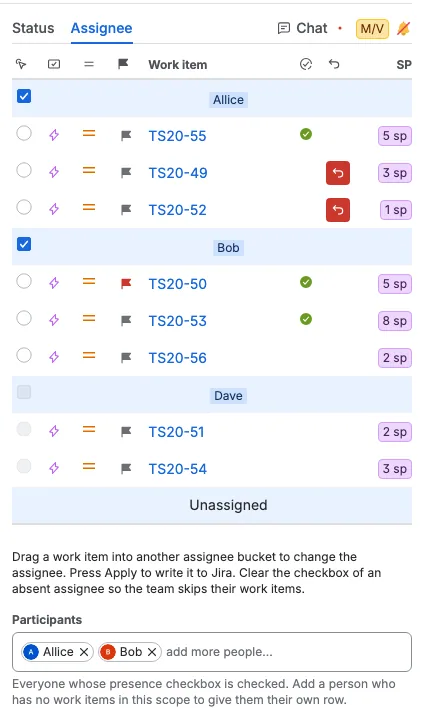
- The rows show the same facts as the Status tab: the work type icon, the priority icon, the flag button, the work item key, the same green passed check, the undo button, and the estimate. The check appears in the same column here, so both tables show how far the team has got.
- Drag a work item into another assignee's row to give it to that person. The change appears for everyone right away, but Jira is not changed until you press Apply. The board avatar, the card color, and the Status row show the new person too. The row moves as soon as you drop it, and the person who dragged ignores the echo of their own change, so a delayed echo cannot put the row back or undo a newer drop.
- The work items inside a row keep the board order. Dragging a work item inside its own row does not change anything, because the board order decides the order here.
- A moderator can give any work item to another person. A voter can give only their own work items. Guests can read the table but cannot change it.
- Below the table and the hint, a moderator can use the Participants picker. It lists every participant whose presence checkbox is checked. Add a person who has no work items in this scope and they get their own row right away, taking part like every other assignee; drag a work item into that row to give it to them. Clear a person in the picker to remove them from the standup. A person who still has work items keeps their row, with the checkbox unchecked and disabled, while a person with no work items loses their row. Adding or removing a participant is shared right away and is saved immediately. Work items already staged to a removed person keep their row until you discard or apply the change.
- An assignee change puts the undo button on the Assignee row, the Status row, and the card. Select it to return the work item to its Jira assignee without changing Jira.
- Press Apply to write the new assignee to Jira. A rejected change stays staged and the error names the affected work items.
- A moderator can clear the checkbox at the left of an assignee row to remove that person from the Participants picker and mark them absent. The checkbox is checked by default for every assignee, and only a moderator can change it. Once cleared, the checkbox stays disabled because the person's work items still belong to them; add them back in the picker to check it again. Voters and guests see the checkbox but cannot change it.
- When an assignee is absent, their work items cannot be selected from the Assignee table, from the Status table, or by clicking the card on the board. Their cards use a gray border and dimmed text and avatar, so you can tell them apart at a glance. They also lose the countdown pause, resume, and forward controls.
- With the Assignee tab open, the countdown forward button moves to the next work item in this table. It skips every absent assignee and stops at the first work item of the next present assignee. On any other tab, the forward button keeps following the board order.
- The presence choice is shared right away, stays after a reload, and resets when the selected board, sprint, or filter changes. If you change several checkboxes quickly, every checkbox keeps your latest choice.
- Unassigned is always shown and is always treated as present. It has no presence checkbox.
Follow the moderator
Voters and guests start locked to the moderator. While locked, you follow the moderator's work item, sprint, board, Max per column cap, visible columns, and side panel tab. The moderator's changes arrive right away. You also follow the moderator's space page tab, so the page moves between Refinement/grooming, Capacity planning, Standup, and Retrospective for the same planning session.
- Lock to moderator applies to the planning tab you are on. Switching to another planning tab yourself clears it, so you start detached on the new tab. A move caused by the moderator's tab change keeps it checked.
- Clear Lock to moderator to browse on your own. You can click another card, pick another tab, pick another sprint, change the cap, or change the visible columns. Your choices stay with this tab and are not shared with the team.
- Picking a card, tab, sprint, cap, or column selection while locked also detaches you.
- Check Lock to moderator again to discard your local choices and follow the moderator. The sprint and board return to the moderator's shared choice.
- The lock is remembered in this browser tab while you stay on the tab.
Stage and apply status moves
Status moves, flags, and assignee changes are stored in the standup session and are not written to Jira until you apply them. Selecting, undoing a move, moving by status, flagging, changing an assignee, and discarding changes update the board immediately. A staged status move, a staged flag, a staged assignee, or a moved place puts the undo button on the card, and the same button appears on its row in the Status tab and the Assignee tab. The button removes the staged change right away, without changing Jira, and the card returns to its lane. You see it only when you may discard that change. Their controls stay available while the request runs. If a request fails, the change rolls back and an error explains it. The board, sprint, filter, and estimate perspective selectors and Apply still wait for the server.
- Select the checkbox on one or more cards, then choose an entry from the bottom Move to dropdown. The menu lists only the Jira statuses every selected work item can reach under By status. A moderator can check every card. A voter can check only the cards assigned to them, so a bulk move never targets another person's work item.
- Each card has the same subtle Move to dropdown. The placeholder is only a hint and resets after each action.
- The menu has two groups. By rank holds Up and Down, which move the work item one place up or down inside its own column. By status holds the Jira statuses the card can reach with a direct workflow transition, for example To Do or Done. Statuses that are not mapped to another board column are not listed.
- A work item that is first in its column has Up disabled, and a work item that is last in its column has Down disabled. For a bulk selection, Up and Down are disabled when no checked work item can move that way.
After a card has a staged status move, its Move to menu disables every By status choice until the move is undone or applied, and the By rank choices stay available. The bulk Move to menu does the same while any selected card has a staged move. Apply recalculates the choices for each moved work item from its new Jira status.
- The app reads the status choices of a work item when you open its Move to menu, so the first open can take a moment and the menu shows Loading statuses under By status until the choices arrive. It keeps the choices for as long as the board is shown, so the next open of the same menu is instant. Voting, starting or forwarding the countdown, selecting a card, moving cards around the board, and discarding changes do not read Jira again. Refresh forgets the choices together with the rest of the board, and the next time you open a menu it reads them again. The bulk Move to menu reads the choices for every checked work item that it has not read yet.
- A staged item moves to the target column and shows an error colored undo button right of its checkbox and moderator badge. The undo button removes the staged status move right away without changing Jira. Use Discard changes to clear every staged move, and that action asks you to confirm.
- A moderator can stage moves for any work item. A voter can check and move only the work items assigned to them.
- The bottom bar shows the pending count. Apply writes the staged status moves to Jira. The standup also keeps the order of each lane, so a card that changed lane is placed after the cards already in its new lane. Apply writes the new order of every lane whose order changed into the selected sprint, so the sprint and the board show the standup order. On a board without a sprint, the order is written to the board order instead. In a filter standup, no Jira rank is written because there is no board; the order stays in the standup. Apply writes only the cards whose place in a lane changed, so the other cards stay where they are. A lane that holds only one card is ranked next to the neighbouring lane, so a card moved into an otherwise empty lane still leaves the order of the lane it came from. Only the lanes whose order changed are written, so a status-only Apply leaves the sprint order alone.
- A moderator applies every staged move in the selected sprint, board, or filter; a voter applies only the moves for their own work items.
- Apply is enabled only while the standup has a staged move or an order change to write. A passed check counts as a change only for Discard changes, because the check is not written to Jira, so passed checks alone never enable Apply. When Apply runs, it writes the staged changes and clears every passed check. A work item that someone adds to the sprint or moves to another status in Jira appears in its lane after the board reloads, but it does not enable Apply by itself.
- Discard changes asks you to confirm, then removes every staged move you can discard, every staged work item a moderator added from a filter, clears every passed check, and returns the lanes to the order the sprint has in Jira now, including a reorder someone made in the Jira backlog. Cancel the confirmation to keep every staged change.
- A moderator can delete the planning session with the danger-colored Delete button above the session tabs, beside Create. A moderator can also archive the standup with the Archive button before Apply, and pressing Apply does not archive anything by itself. Deleting asks for confirmation and permanently removes the planning session and its standup, retrospective, and chat data.
A status move fails and stays staged when the work item changed status in Jira after it was staged. The board reloads after Apply. An order write failure leaves that lane pending and reports the affected work items so you can retry. The failed order is never written to another place, so the sprint order and the board order cannot disagree because of it.
Archive the standup
A moderator can archive the standup to Confluence. The Archive button sits before Apply and appears when a Confluence space is configured. Archiving never changes Jira, the standup, or the staged changes.
The dialog shows the planning window, the sprint, board, or filter name, the space name, every assignee with presence and total presentation time, and every work item with its status, presentation time, and changes. A person the moderator added with the participant picker is listed too, with zero work items until something is assigned to them. A staged change is marked Pending. Presentation time is the countdown time the work item spent on screen and counts toward its assignee.
Confirm with Archive to create or update the page. The page is written under Plannings in a child page named after the space with a Standup suffix, and its title carries the word Standup.
Reload and live updates
Reload sprints and work items in the bottom action bar, after the Move to dropdown, reloads the selected sprint or board, its Jira statuses, the estimates shown on the cards, and the Jira flags, and it forgets the Move to choices so the next open reads them again. It does not change the standup order, and it does not move a work item to the place its Jira rank gives it. The rest of the bar follows it on the left: a gap, then Discard changes, Archive, and Apply for a moderator. The countdown sits at the right of the bar. Stages, undos, flags, and applies from other participants arrive right away. Staged moves, flags, and lane order changes are kept per planning session and per board and sprint, or per filter, and are removed when the planning session is deleted.
A moderator selects Edit above the session tabs, beside Create, to open the Edit planning session dialog. You can change the title, description, and schedule of the planning session there. The new values show on the planning tab and the progress bar right away. If the save fails, the previous values come back and a message tells you that the planning session could not be saved.
Accepting an estimate in a perspective tab updates it right away for everyone: the estimate badge on the card and the estimate in the Status and Assignee tabs change without a reload. The other work items on the board stay as they are.
The standup countdown
A countdown at the right of the action bar follows the work item the moderator is discussing. A moderator sees the duration choice, the play or pause button, and the forward button. A voter who is assigned to the selected work item also sees the play or pause button and the forward button for that item. Guests see only the clock, even when the selected work item is assigned to them, so everyone can follow the same countdown.
- A voter assigned to the selected work item can pause, resume, and forward the countdown. Starting a stopped countdown and changing the duration stay with the moderator.
- The clock keeps following the moderator even while you browse locally, so a detached voter or guest still sees the moderator's countdown.
- The duration choice offers 15 seconds, 30 seconds, 1 minute, 2 minutes, and 3 minutes. It starts at 1 minute.
- The countdown stops and resets when the moderator selects another work item, and it starts again right away for the new card. Clearing the selection stops the countdown.
- Changing the duration stops the countdown and shows the new duration. The moderator starts it again with the play button.
- The forward button ends the current countdown and moves the shared selection to the next work item in the column. When the current card is the last one in its column, it selects the first work item in the previous column. On the last card of the first column the selection stays and the countdown ends. A new selection starts a fresh countdown automatically.
- In the last 10 seconds the selected card alternates between its normal background and the same highlight background used for the selected work item once per second. It never switches to a gray warning background. In the last 5 seconds it alternates twice per second. The card returns to its selected highlight when the countdown ends.
- When the countdown reaches zero, everyone hears the same end sound as the retrospective countdown, subject to their sound setting. Pressing the forward button while the countdown still has time left plays the same end sound for everyone right away, whether the countdown is running or paused. Reaching zero alone does not pass the work item. The moderator passes it by pressing the forward button, or by selecting another work item or clearing the selection after the countdown ran out. The passed work item then shows the green check on its card and in both tables.
- The passed checks are shared, so every participant sees the same green checks without a reload. They belong to the planning session and the selected board, sprint, or filter.
Planning session progress
The planning session progress bar sits at the bottom of the standup, below the action bar and to the left of the side panel. It shows how much of the planning session has elapsed, the time until it starts or the time remaining, and a Completed state once the end date has passed.
Standup data is kept for 12 hours after the last change. Each planning session keeps one record for its shared selection and one set of records for each board and sprint, or for each filter. Older standup data is removed automatically.