
Archiving to Confluence
Updated
A moderator can archive a planning session to a Confluence page, giving the team a permanent record of the accepted estimates. Archiving is optional and only available after a Confluence space has been configured for the Jira space.
Configuring the Confluence Space
In space settings, open the Permissions tab and find Confluence space, below the roles. Use the search box to find a space by name or key and select it; only the space key is stored. Leave it empty to disable archiving. Only a space administrator can change this setting. The search shows only Confluence spaces your account can access.
If Scrumpy is not installed on Confluence for your site, the Confluence space field is disabled and a note explains that Confluence export is available only after the app is installed on Confluence.
Archiving a Planning Session
On the Refinement/grooming tab, the Archive button sits at the end of the action bar below the planning table and appears only when a Confluence space is configured. Clicking Archive opens a dialog that previews exactly what will be written:
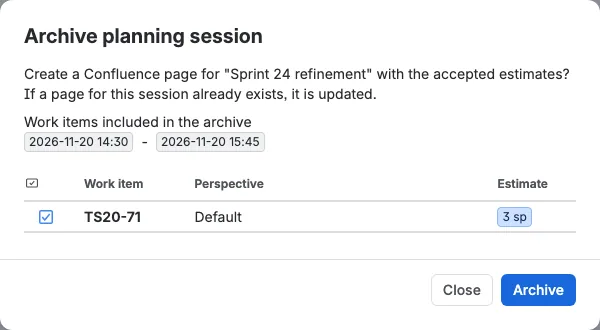
- When the planning session has a timer, the window is shown as a start badge and an end badge
- The preview table lists the work items that have an accepted estimate inside the window, with Type, Work item, Perspective, and Estimate columns, and can be sorted
- A planning session without a timer has no window, so its preview lists every work item with an accepted estimate
- Work items you cannot open in Jira are omitted, including work items hidden by Jira issue-level security
- When nothing is listed, the dialog explains why: no estimates have been accepted for this session yet, or the session has accepted estimates but none fall inside the planning window
Confirm with Archive. On success the dialog shows a link to the created page. The Archive button is disabled whenever the preview lists no work items (while it is loading, when none have been accepted, when they all fall outside the planning window, or when the preview fails to load). Only moderators can archive.
When Scrumpy is not installed on Confluence, the Archive button is disabled and explains why. The Delete dialogs then do not offer the archive option.
Archiving While Deleting
When a Confluence space is configured, both Delete dialogs offer a Create a Confluence archive page checkbox. When checked, the archive runs after any chosen accept or cancel action and before the planning session is removed. The resulting page link, or the failure message, is shown as a banner in the Refinement/grooming tab. The banner offers a Dismiss action that hides it.
Archiving a Capacity Plan
On the Capacity planning tab, select an active or future sprint in the combined table, then select Archive in the capacity toolbar. The button is disabled when a closed sprint is selected, because a closed sprint is history only. Only a moderator can archive, and the action is available only after a Confluence space has been configured for the space.
The dialog previews the sprint, the goal and its votes, the decision, and the velocity summary before anything is written. The team and work item tables are written to the page only. While the preview loads, Archive stays disabled. If the preview cannot load, the dialog says so, and you can close it and try again. Confirm with Archive to create the page, or select Close to leave the capacity plan unchanged. When the page is ready, the dialog shows a link to it. If Confluence refuses the page, the dialog shows the reason and the capacity plan is not changed.
The page records:
- The planning session title, description, start and end time, and timezone, in the same header as the planning archive page, followed by the planning duration
- The selected sprint name, state, start and end dates, and sprint goal
- The up and down votes for the sprint goal
- A Decision section that says whether the remaining estimate is below, within, or above the target capacity range
- A velocity summary with the velocity per member, team velocity, team size, effective team size, team capacity, target capacity, healthy range, planned estimate, remaining estimate, and deviation from target
- A team table with every member of the selected sprint, their utilization, and their hours of work out of the sprint working hours
- The planned work items in their saved order, with their status and estimate. An estimate is shown in green while the running total stays below the healthy range, in yellow inside the range, and in red above it, matching the capacity table.
The header is the same one the planning archive page uses: the planning title and description, then the start and end on separate lines, with each date shown as a Confluence date chip and each time highlighted in a blue badge, and the timezone the dates are valid in. The planning duration follows the header as a plain line. The sprint goal and its up and down votes appear centered directly below the sprint name, and the sprint goal is shown without a label. The sprint start and end dates share one line and are separated by a dash, for example Oct 7, 2026 - Oct 15, 2026. The team and work item tables use a wider layout, and the Work item column leaves room for a longer summary.
The page reflects the capacity plan as it currently appears, including changes that are still saved as a draft and have not been applied to Jira. Story point boards show story points, and time boards show work-day durations.
Archiving a Retrospective
On the Retrospective tab, the Archive button sits before Apply. It is available to moderators in the Actions stage. In Feedback and Vote it stays disabled with an explanation, because the notes of other participants are still hidden until the team reveals them. Archiving creates or updates the Confluence page and does not close the planning session.
The dialog previews the archive for the selected sprint before anything is written. It shows the planning window, the board and sprint name, the sprint goal, the sprint state, how many notes each column contributes, and the action items with their work item type icon, their linked Jira work item or summary, and their hearts. The confirmation button stays disabled while the preview loads, when the preview cannot load, and when the sprint has neither notes nor action items. Only a moderator can archive.
The page records:
- The planning title, description, start and end time, and timezone
- The board name, sprint name, sprint goal, sprint dates, and sprint state
- A notes table with one column per retrospective column, such as Good, Bad, and Ugly. Each note sits in its own cell, and notes that the team grouped together share one cell. Authors, hearts, and votes are not written to the page.
- A participants table with every note author, everyone who gave a heart, and every action item author, showing the number of notes and hearts for each person. The hearts column is headed with a heart icon.
- An action items table with a Summary first column that is twice as wide as before. A linked action item shows its Jira work item link; an action item without a link shows its summary as text. The rows keep the order the moderator set in the retrospective. The narrow last column is headed with a heart icon and shows the number of hearts in a colored badge. The number is the total hearts of the notes the action item came from, the same number the retrospective shows.
Retrospective archives use their own hierarchy: a root Retrospectives parent page, then a child page named after the space with a Retrospectives suffix, then the archive page. The page title carries the planning name, the sprint name, and the word Retrospective, so it never collides with planning or capacity archives. Re-archiving the same sprint updates the existing page.
Archiving a Standup
On the Standup tab, the Archive button sits before Apply and is available to moderators when a Confluence space is configured. Archiving never applies, discards, or completes the standup and never changes Jira. The dialog previews the planning window, the scope and space name, the participants with their presentation time, and the work items with their changes. Confirm with Archive to create or update the page.
The page records the planning header, the sprint, board, or filter name, the space name, the sprint goal and state, every assignee with presence, item count, and presentation time, and every work item with its status, presentation time, and changes. Presentation time is the countdown time the work item spent on screen, credited to its assignee. A staged change is marked Pending.
Standup archives use the Plannings root. The child page is named after the space with a Standup suffix, and the page title carries the planning name, the scope name, the word Standup, and the planning start time.
The Archive Page
Planning, capacity, retrospective, and standup archives all start with the same planning session header. The generated planning page contains:
- The planning title, followed by the start date, time, and timezone (for example Sprint 42 - 2025-06-01 09:00 (Europe/Berlin))
- The description, then the start and end on separate lines, with each date shown as a Confluence date chip and each time highlighted in a blue badge
- The timezone the dates are valid in
- A Participants section listing every voter who actually voted, with their number of votes, as a small table with a Votes column and a Participant column (each voter is one row)
- An Estimated work items table of the accepted estimates, with columns Work item, Perspective, Duration, Votes (each given vote as a badge), Participants (the voters shown as a group of users), Estimate (a badge that is green when the computed average was chosen and yellow when the moderator set a different value), and Moderated by (the user who started the voting session)
The page includes only the accepted estimates that fall between the planning session's start and end. A planning session without a timer has no window, so its page includes every accepted estimate, has no start, end, or timezone line, and its title carries only the planning name. All dates and times are rendered in the archiver's preferred timezone.
Page Hierarchy and Re-Archiving
Planning-session archives are written under a fixed hierarchy: a root Estimations parent page, then a child page named after the Jira space, then the archive page.
Capacity-plan archives use a separate hierarchy at the same level: a root Plannings parent page, then a child page named <space name> - Capacity planning, then the archive page. Standup archives share the Plannings root but use a child page named <space name> - Standup, and their page titles carry the word Standup. The distinct page titles keep the four archive kinds apart and stop one from overwriting another.
Re-archiving the same sprint updates the existing capacity or standup page (matched by exact title inside the Plannings area) instead of creating a duplicate. The created page is a normal Confluence page and is not removed when Scrumpy purges estimation data after its 90-day retention window.