
Affinity and Dot ranking
Updated
A team does not always need an estimate to agree on what matters most. Affinity ranking asks every participant to put the work items in order. Dot voting gives every participant a small budget of dots, and the dots decide the order. Scrumpy then uses that order in the Bucket voting table, where the team can estimate the work items without losing it.
This tutorial continues the setup from Creating a planning session: ten work items, the Time, Scrum, and Bugs perspectives, and three participants. It uses the Scrum perspective.
Open the ranking panel
Open the planning session and switch the edit mode to Bulk voting. A row for each perspective appears below the work items. Select the radio beside Scrum. The panel on the right opens with Affinity, Dot, and Bucket tabs, the perspective title and description, a settings gear, your role badge, and the sound bell.
Only voters can rank. A guest sees the same tables read-only.
Rank with Affinity
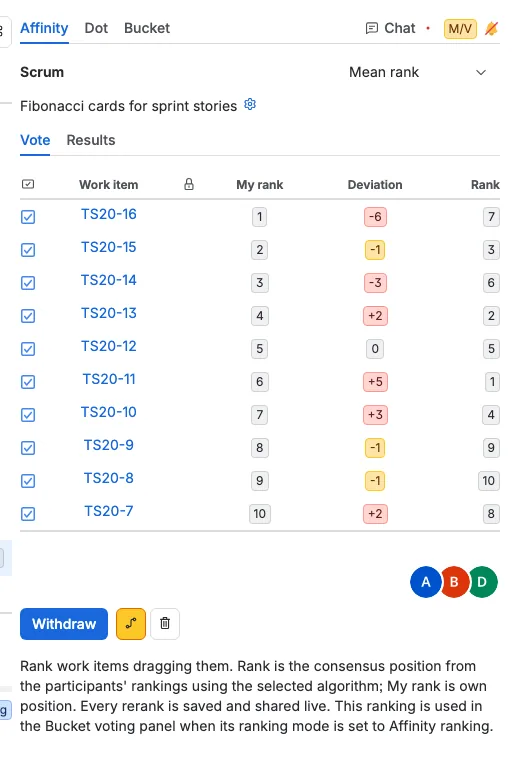
Open the Affinity tab. Drag a work item up or down to change its position. Every move is saved as you drag and shared live, so the other participants see your order at once. The table keeps your own order. My rank is your position, Deviation is your distance from the agreed position, and Rank is the agreed position. A positive deviation means the team ranked the work item above your position, and a negative one means it ranked it below.
Every listed work item takes part, even when you never moved it. Below the table you see the participants who have ranked. Withdraw removes your ranking.
A moderator chooses the agreed position with Mean rank or Median rank beside the perspective title. Mean rank averages the positions, and Median rank uses the middle position.
Rank with dots
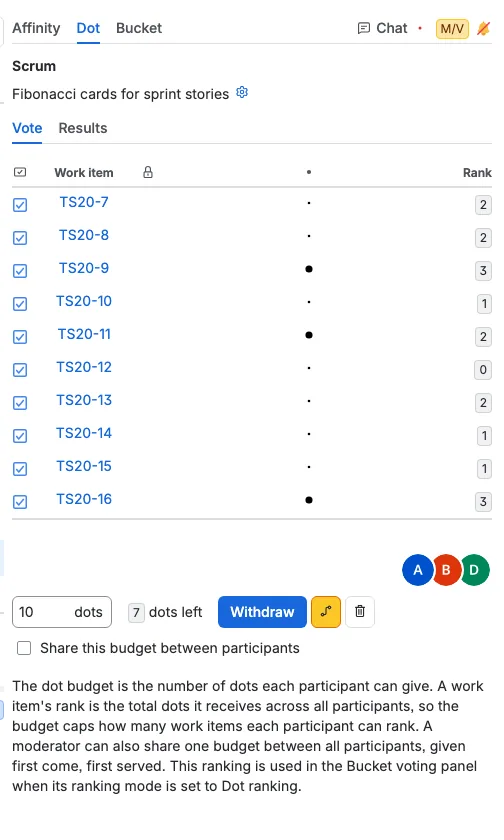
Open the Dot tab. Each participant can place one dot on a work item, and placing the same dot again removes it. A work item's rank is the total number of dots it receives from all participants. The Rank column shows that total.
The dot budget is the number of dots each participant can give. It is one dot per work item by default, so ten dots for ten work items, and a moderator can lower it. A moderator can also share one budget between all participants; dots are then given first come, first served. The moderator sees the number field, and everyone sees the dots-left badge. In this example each participant spent between five and eight dots.
Withdraw removes all of your dots. The Results tab of both rankings shows a chart: the agreed position for Affinity and the dot count for Dot.
Rank the bucket table
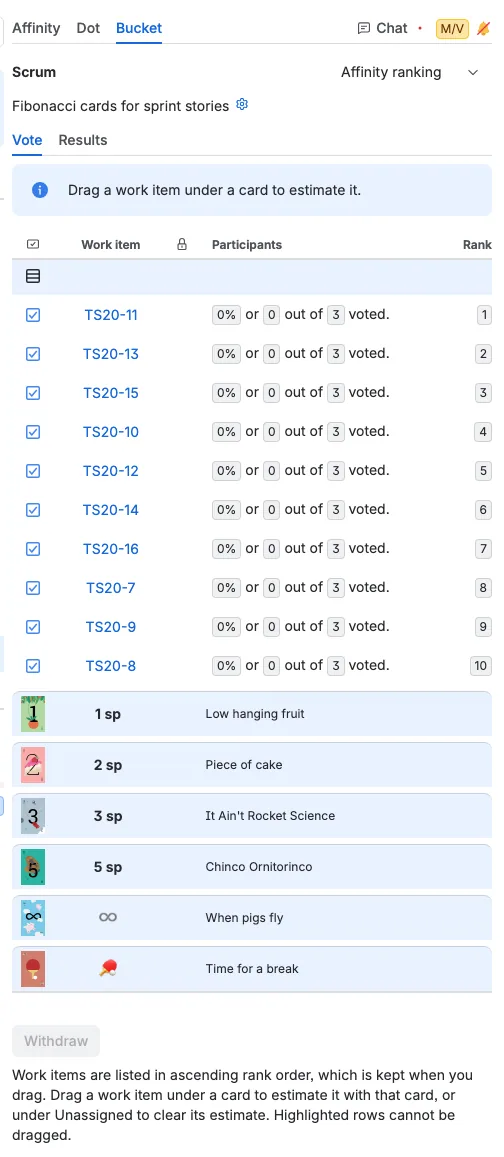
Open the Bucket tab. The dropdown beside the perspective title reads No ranking by default. Choose Affinity ranking or Dot ranking once at least one participant has submitted that ranking. The table then lists the work items from the best rank to the worst and adds a Rank column. The card rows keep their configured order.
Work items with the same rank can be reordered inside the same card row or inside No estimate, but they cannot cross a work item with a different rank. Dragging a work item under a card can change more than one row, because the table keeps the rank order:
- Drop onto No estimate to clear the dropped work item and the better-ranked carded work items above it.
- Drop onto a better card, higher in the table, to move the dropped work item and the better-ranked carded work items it passes under that card.
- Drop onto a worse card, lower in the table, or out of No estimate, to move the dropped work item and the worse-ranked work items that land under that card.
Work items with the same rank as the dropped work item never move with it. Only the dropped work item changes card among its rank peers. Every work item that lands under a card takes that card's estimate, so the whole group is estimated together.
Changing the ranking clears the bucket votes
Switching from No ranking to Affinity ranking or Dot ranking, or between the two, resets the votes in the Bucket table and returns every work item to No estimate. The change appears at once, and if it cannot be saved, the previous ranking and votes return. Switching back to No ranking keeps the votes you have.
Once the enforced ranking has a vote or a completed session in the Bucket table, its own tab locks. You cannot rerank the Affinity table, place or remove dots, or withdraw, and the algorithm selector becomes read-only. Change the enforced ranking to unlock it. The other ranking stays editable.
Sync the rankings with Jira
Affinity: only a moderator sees the Sync to Jira arrow. Scrumpy uses the rank field configured on the board you opened the space page from. If Jira does not report a board, or the board does not configure a rank field, Jira's default rank field is used. Press the arrow and Scrumpy writes the agreed order, not your own order, into the Jira rank. The top work item keeps its place and the rest are ranked after it, so the listed work items become one ranked block. If Jira refuses the change, an error appears below the controls and you can try again. You need permission to rank work items in Jira.
Dots: every participant presses the Sync to Jira arrow in their own Dot panel. Scrumpy adds or removes your Jira vote on each listed work item so it matches your dots. Each participant syncs their own votes. This changes the Jira votes, not the estimates. If some work items fail, an error appears and you can try again.
Reset a ranking
- Withdraw removes your own ranking or all of your dots.
- Clear rankings, the delete icon beside Withdraw, is for a moderator and deletes the rankings for everyone on that tab.
- Choose No ranking in the Bucket tab to stop enforcing a ranking.
If the ranking you clear was the enforced one, the Bucket tab returns to No ranking by itself. With a completed session, the Bucket tab allows only No ranking.
When the rankings are deleted
Cancelling or accepting a work item's voting session removes that work item from both rankings. When you accept the estimates and close the last voting session, both rankings for that perspective are deleted and the enforced ranking returns to No ranking.
Completing a session does not delete its ranking. The completed work item keeps its place, and the enforced order stays locked until you cancel or accept that session.
Completed sessions lock the bucket table
A completed session stays in the Bucket table with its recorded vote, so you can compare it with the others. It cannot be moved or re-estimated.
When a ranking is enforced and at least one voting session is completed, the whole Bucket table is locked. You cannot drag work items or press Withdraw, and the ranking dropdown allows only No ranking. Cancel or accept the completed sessions to unlock the table.